





6.67 Inch Flexible AMOLED Display for Raspberry Pi and LattePanda
The Flexible AMOLED Display for Raspberry Pi is a 6.67 inch bendable screen kit for makers who want a curved, high-resolution visual interface without building a custom MIPI display stack from scratch. It pairs an ultra thin AMOLED panel with an HDMI driver board, so Raspberry Pi, LattePanda, and other SBC projects can treat it much like an external monitor.
That makes it different from many flexible display modules aimed only at display engineers. Instead of starting with a bare smartphone-style MIPI panel and working through low-level display bring-up, you get the screen, HDMI driver board, MIPI adapter board, FPC cable, HDMI cable, and Micro USB power cable in one package.
For Raspberry Pi 5 and Raspberry Pi 4 users, the practical point is simple: the display connects through HDMI output, but you will need the right Micro HDMI to HDMI cable for the Pi board. For LattePanda users, it works as a compact, high-resolution HDMI AMOLED display for Windows or Linux projects.
For official specifications and product details, check the DFRobot 6.67 inch Flexible AMOLED Display product page and the DFR1262 datasheet.
Further Reading: browse the full DFRobot catalogue on the Electromaker store
What is the 6.67 inch flexible AMOLED display?
This display is a 6.67 inch flexible AMOLED module with a 2400 x 1080 resolution, 20:9 aspect ratio, 450 cd/m² brightness, and 16.7 million colours. The panel uses a flexible substrate and has a maximum thickness of 1.2 mm, which allows it to sit against curved surfaces where a rigid LCD would force a flat design.
The display itself uses a MIPI 40-pin interface, but the supplied driver hardware gives the maker a simpler route into the panel. The included MIPI-to-HDMI driver board lets a Raspberry Pi, LattePanda, mini PC, or similar HDMI source output video to the screen without a custom MIPI DSI hardware design.
That is the main reason this product matters for hobbyists and embedded developers. Flexible AMOLED panels are not new, but they are often difficult to use outside phone manufacturing or specialist display development. This kit makes a flexible OLED-style interface more accessible for prototypes, portable builds, robot faces, dashboards, and custom HMIs.
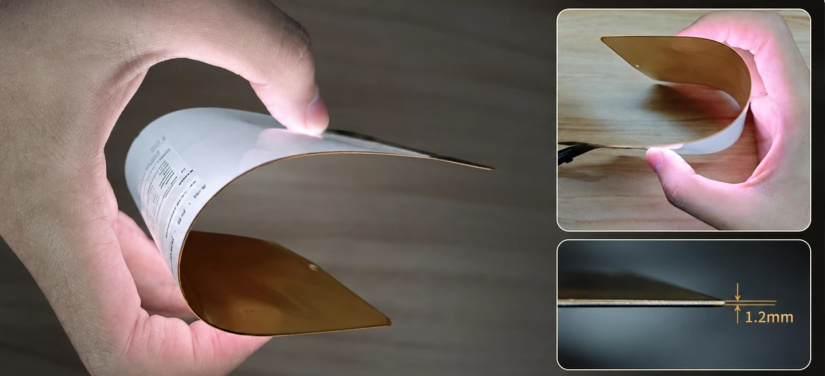
Key specifications
The display is best understood as two parts: the flexible AMOLED panel and the driver hardware that makes it usable with common SBCs. These are the main specifications to check before buying or designing an enclosure around it.
| Feature | Specification |
|---|---|
| Product type | Flexible AMOLED display module with HDMI driver board |
| Screen size | 6.67 inches |
| Resolution | 2400 x 1080 SPR |
| Panel type | AM-OLED |
| Brightness | 450 cd/m² |
| Refresh frequency | 50Hz |
| Aspect ratio | 20:9 |
| Viewing angle | 85 degrees |
| Display colours | 16.7 million |
| Display area | 154.56 mm x 69.552 mm |
| Mechanical size | 162.56 mm x 74.46 mm |
| Maximum thickness | 1.2 mm |
| Driver IC | ICNA3511A |
| Driver voltage | 3.3V to 5V |
| Panel interface | MIPI 40-pin, used through the supplied adapter and HDMI driver board |
| Operating temperature | -20°C to 60°C |
What comes in the kit?
The bundled parts are important because they reduce the amount of display bring-up work. You are not just buying a bare flexible panel.
- 6.67 inch AMOLED flexible display: the ultra thin 2400 x 1080 screen.
- HDMI driver board: converts HDMI input for use with the panel.
- MIPI adapter board: connects the panel assembly to the driver hardware.
- FPC cable: links the display and board stack.
- HDMI to HDMI data cable: useful for boards with full-size HDMI output.
- Micro USB power cable: powers the driver board from a suitable 5V source.
Raspberry Pi 4 and Raspberry Pi 5 do not use full-size HDMI on the board itself. You should plan for a Micro HDMI to HDMI cable or adapter when connecting either board.
Flexible AMOLED vs rigid LCD for Raspberry Pi projects
A normal HDMI LCD is still the easier and cheaper choice for many Raspberry Pi projects. The flexible AMOLED display makes sense when the shape, thickness, contrast, or product concept matters more than simply adding a screen.
| Area | Flexible AMOLED display | Typical rigid HDMI LCD | Practical impact |
|---|---|---|---|
| Mechanical design | Can follow curved or form-fitting surfaces within the panel limits. | Needs a flat mounting surface and a rigid bezel. | AMOLED is stronger for curved dashboards, robot faces, and wearable-style prototypes. |
| Thickness | Panel thickness is up to 1.2 mm. | Usually thicker because of the LCD layer, backlight, and rigid frame. | AMOLED is better for slim enclosures, but the driver board still needs space. |
| Black levels | Self-emissive pixels can turn off for black areas. | Backlight remains active behind the LCD layer. | Dark UI designs can look cleaner on AMOLED, especially in a black enclosure. |
| Integration | Uses HDMI through the supplied driver board. | Usually uses HDMI, USB, GPIO, or DSI depending on the model. | This AMOLED kit avoids custom MIPI work, but cabling and power still need care. |
| Best use | Curved interfaces, prototypes, industrial mock-ups, compact HMIs, and custom devices. | Desktops, kiosks, control panels, test benches, and low-cost builds. | Pick AMOLED when the physical form of the screen is part of the product idea. |
AMOLED vs IPS display: what changes for makers?
The most useful AMOLED vs IPS display comparison is not about which technology is universally better. It is about which one fits the project.
IPS LCD screens are common, affordable, and widely available in Raspberry Pi accessories. They can be bright, robust, and simple to mount. AMOLED screens use self-emissive pixels, so they can offer very dark black areas, strong contrast, and thinner panel construction. In this product, the flexibility is the bigger practical difference because it changes the kind of enclosure you can build.
There are also trade-offs. A flexible AMOLED panel needs careful mechanical handling, clean cable routing, and a sensible brightness policy for long-running interfaces. Static UI elements should be designed thoughtfully, especially for projects that display the same controls or status bars for long periods.
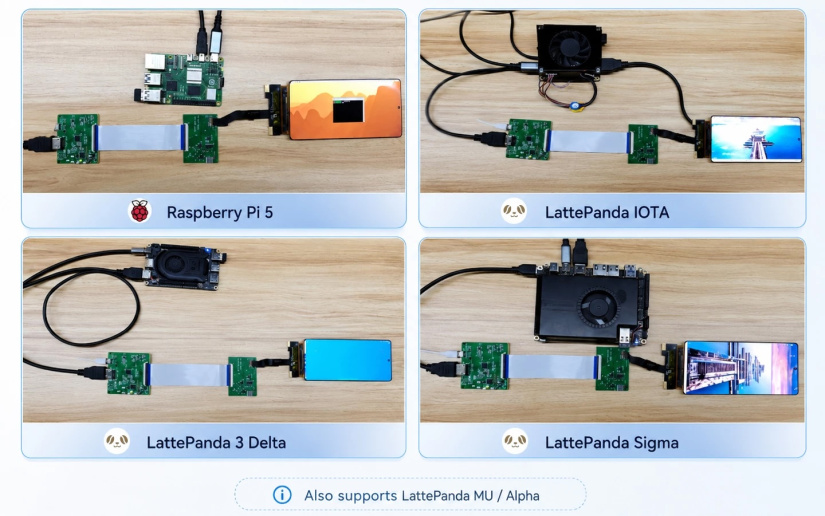
Raspberry Pi 5 AMOLED display setup
Setting up the flexible AMOLED display for Raspberry Pi 5 is closer to connecting a monitor than installing a DSI display. The driver board handles the display-side conversion, while the Raspberry Pi outputs video through HDMI.
What you need
Before you start, gather the display kit and the right Raspberry Pi accessories. The most common setup mistake is assuming the included HDMI cable plugs directly into a Raspberry Pi 4 or Raspberry Pi 5.
- DFRobot 6.67 inch Flexible AMOLED Display kit.
- Raspberry Pi 5 or Raspberry Pi 4 with Raspberry Pi OS installed.
- Micro HDMI to HDMI cable or adapter for Raspberry Pi 4 or Raspberry Pi 5.
- Suitable Raspberry Pi power supply.
- 5V USB power source for the display driver board.
- Keyboard, mouse, or SSH access for changing display settings.
Connect the display
Follow this order for a basic first boot test. It keeps the display wiring clear and makes troubleshooting easier if the screen stays black.
- Place the flexible display on a clean, flat, non-abrasive surface before applying any curve.
- Connect the display panel to the supplied MIPI adapter and driver board using the supplied FPC cable.
- Connect the Raspberry Pi HDMI output to the display driver board. Use a Micro HDMI to HDMI cable for Raspberry Pi 4 or Raspberry Pi 5.
- Connect 5V power to the display driver board using the Micro USB power cable.
- Power the Raspberry Pi.
- Open the Raspberry Pi display settings and confirm that the screen is detected.
- Set the orientation and scaling to suit your enclosure or UI layout.
The display is factory-configured in portrait orientation at 2400 x 1080. You can change orientation and resolution in the host operating system display settings.
Raspberry Pi 4 display configuration tips
Raspberry Pi 4 setup is similar to Raspberry Pi 5 setup because both boards use Micro HDMI output. If the desktop appears rotated, too small, or cut off, adjust orientation and scaling before changing low-level configuration files.
On Raspberry Pi OS Bookworm, start with the graphical display settings. For many projects, that is enough. If you are building a kiosk, embedded UI, or fixed-purpose interface, document the final display settings as part of the project build notes so a later OS reinstall does not break the layout.
If you are using Wayland rather than X11, display tools and behaviour can differ. Use the Raspberry Pi OS display settings first, then confirm which display stack your image uses before editing configuration files.
Using the display with LattePanda and other SBCs
The display is also aimed at LattePanda boards because they provide a PC-like HDMI output and often run Windows or Linux. That makes the screen useful for compact x86 interfaces, portable dashboards, touchless control panels, and prototype product UIs.
The same basic connection model applies to other SBCs with HDMI output, including boards such as Banana Pi and Orange Pi where the OS image can output a suitable HDMI mode. Always check the board’s HDMI connector type, power arrangement, and display settings before you design a printed enclosure.
Further Reading: Introducing the LattePanda Mu: The Ultimate Small Form Factor PC
Designing a curved interface around the panel
A bendable AMOLED screen gives you more freedom than a rigid LCD, but it does not remove the need for careful mechanical design. Treat the display as a precision part, not as a sheet of plastic you can freely crease or fold.
- Avoid sharp bends: use smooth, gradual curves and avoid forcing the screen around tight corners.
- Support the full panel: design the enclosure so the display sits against a continuous surface rather than a few pressure points.
- Protect the FPC area: leave enough space for the flexible cable and avoid strain at the connector.
- Test flat first: confirm HDMI output, power, orientation, and scaling before mounting the screen into a curved shell.
- Plan service access: the driver board, cables, and power connection should remain accessible during prototyping.
For a professional-looking UI, design around the 20:9 aspect ratio rather than trying to force a square or 16:9 interface into the panel. Dark backgrounds, large touch-friendly controls, and high-contrast typography suit AMOLED-style displays well, even when touch input is handled separately.
Project ideas for a flexible AMOLED display
This screen is most useful when the display shape is part of the project, not just an output device. These ideas fit the panel’s high resolution, slim build, and curved mounting potential.
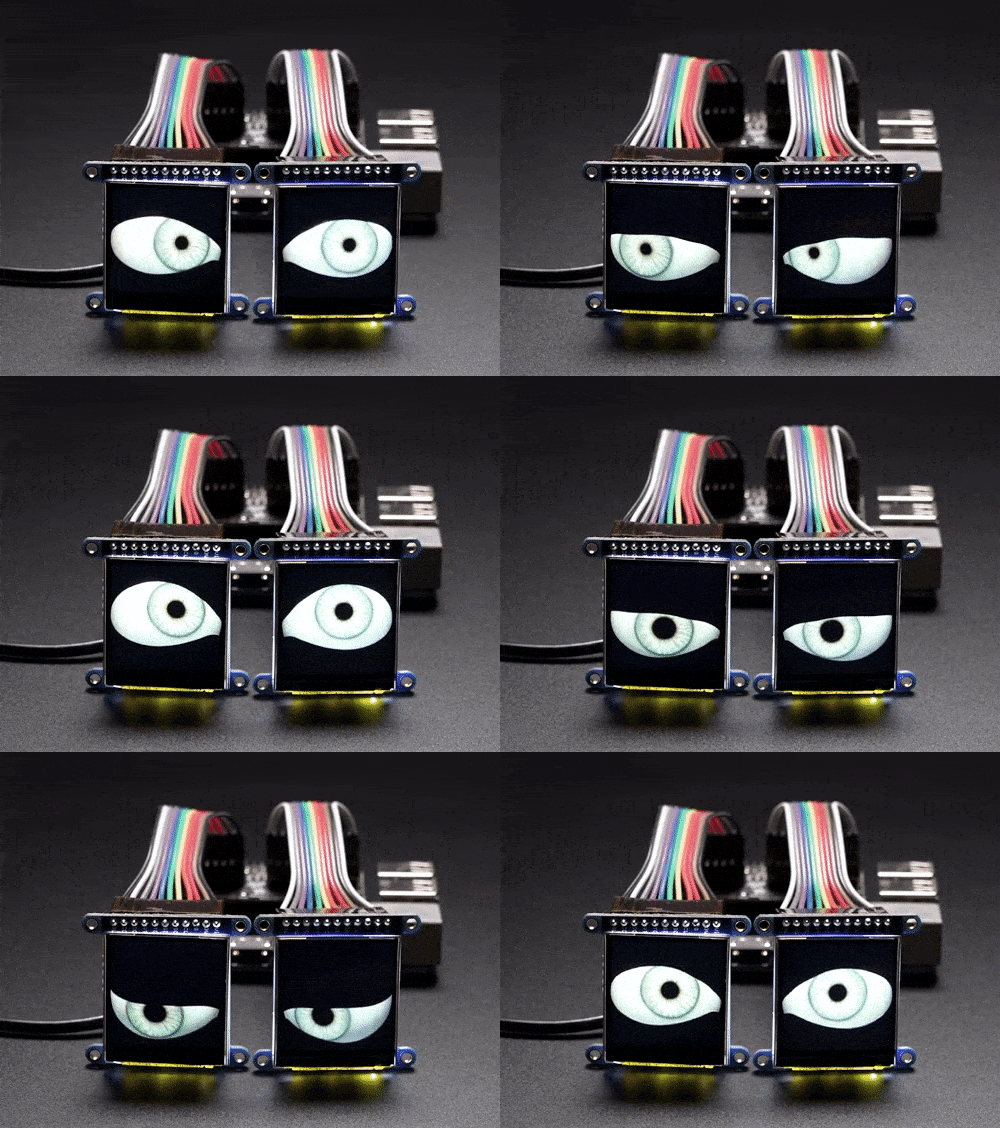
- Humanoid robot face: use a Raspberry Pi or LattePanda to render animated eyes, expressions, and status information on a curved faceplate.
- Custom dashboard prototype: build a compact centre console, simulator cockpit, or vehicle telemetry display with a curved visual surface.
- Portable cyberdeck: create a slim Linux terminal with a screen that follows the enclosure shape.
- Industrial HMI mock-up: prototype a curved control panel for equipment, medical devices, or specialist tools.
- Wearable-style interface: test arm-mounted or body-worn UI concepts before committing to a custom enclosure.
- Retail or exhibition display: build a small visual demo where the physical shape of the screen helps attract attention.
Troubleshooting: Raspberry Pi AMOLED display not working
Most setup problems come from cabling, power, or display mode assumptions. Work through the simple checks before replacing parts or editing boot configuration files.
| Problem | Likely cause | What to check |
|---|---|---|
| No signal over HDMI | Wrong cable, loose connector, display powered after boot, or unsupported display mode. | Use a known-good Micro HDMI to HDMI cable, power the driver board, reseat the HDMI cable, then reboot the Raspberry Pi. |
| Display not detected | The HDMI driver board is not powered or the HDMI connection is not active. | Check 5V power to the driver board, try the other Raspberry Pi HDMI port, and confirm output with another monitor. |
| Flexible AMOLED display flickering | Weak power source, unstable cable, poor FPC seating, or an unsuitable refresh setting. | Use a stable 5V power source, reseat the FPC cable carefully, avoid USB power sharing during tests, and check the selected display mode. |
| Image rotated | The panel default orientation is portrait. | Change rotation in Raspberry Pi OS, Windows, or Linux display settings. |
| UI too small | The 2400 x 1080 resolution gives a dense desktop on a 6.67 inch screen. | Increase desktop scaling, choose a lower UI resolution if acceptable, or design a custom interface with larger text and controls. |
| Image cuts off or scales poorly | Host OS scaling or overscan behaviour does not match the panel. | Check display settings first, then review Raspberry Pi display configuration only if the graphical tools do not solve it. |
Who should buy this display?
Buy this display when your project needs a high-resolution curved or flexible visual interface and you want HDMI integration rather than a bare MIPI development task. It is a good match for Raspberry Pi and LattePanda projects where the screen shape is part of the design brief.
- Buy it for: curved AMOLED display prototypes, Raspberry Pi 5 visual interfaces, Raspberry Pi 4 dashboards, LattePanda projects, robot faces, compact HMIs, and product concept models.
- Think twice if: you only need a cheap desktop monitor, a rugged outdoor display, a simple GPIO screen, or a touchscreen-only module.
- Do not skip: cable checks, power validation, orientation setup, enclosure testing, and careful handling of the flexible panel.
FAQs
These are the common questions to settle before using the display in a Raspberry Pi, LattePanda, or embedded UI project.
Does the flexible AMOLED display work with Raspberry Pi 5?
Yes. It works with Raspberry Pi 5 through HDMI output. You need a Micro HDMI to HDMI cable or adapter because Raspberry Pi 5 uses Micro HDMI connectors.
Does the flexible AMOLED display work with Raspberry Pi 4?
Yes. It works with Raspberry Pi 4 through HDMI output. As with Raspberry Pi 5, you need a Micro HDMI to HDMI cable or adapter.
What is the default resolution and orientation?
The display is factory-configured in portrait orientation with a 2400 x 1080 resolution. You can change orientation and resolution in the host operating system display settings.
Do I need custom Raspberry Pi drivers?
For normal HDMI output, you do not need a custom Raspberry Pi display driver. The supplied driver board lets the Raspberry Pi treat the module as an HDMI display. You may still need to adjust orientation, scaling, or resolution in the OS.
Why is my Raspberry Pi AMOLED display not working?
Start with the HDMI cable, 5V driver board power, and FPC cable seating. Raspberry Pi 4 and Raspberry Pi 5 also need a Micro HDMI to HDMI cable. If the display is detected but the image is wrong, check orientation and scaling settings.
Is this better than a normal HDMI LCD?
It is better for curved, thin, form-fitting interface prototypes. A normal HDMI LCD is usually cheaper and easier for flat desktop, kiosk, and bench projects.

Ian Buckley is a writer, musician, and perpetual tinkerer. Commonly found surrounded by hobby electrical components, he's also a keen programmer and likes to build crazy-sounding instruments with microcontrollers. In addition to Electromaker, Ian writes over at MakeUseOf and has bylines at the likes of Online Tech Tips as well as Help Desk Geek.







Leave your feedback...