




UNIHIKER K10 Now Supports ESP-Claw for Chat-Based Local AI
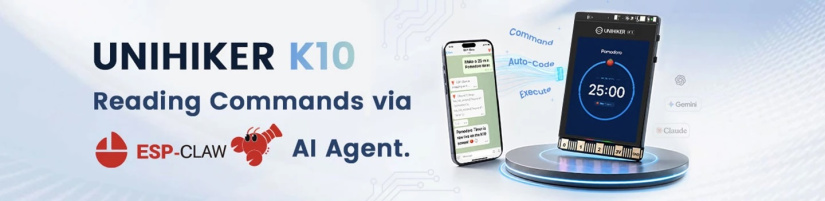
DFRobot’s UNIHIKER K10 now supports ESP-Claw, giving this ESP32-S3 AI coding board a new route into chat-based local AI projects. Instead of starting every embedded project with traditional code, users can flash ESP-Claw firmware, configure the board, then use text or voice commands through a chat interface to define device behaviour.
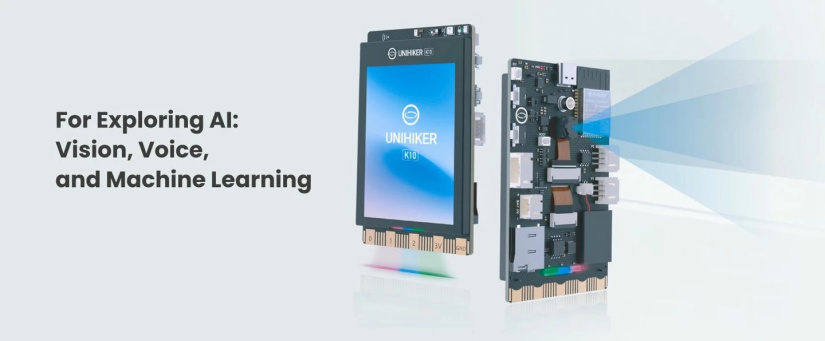
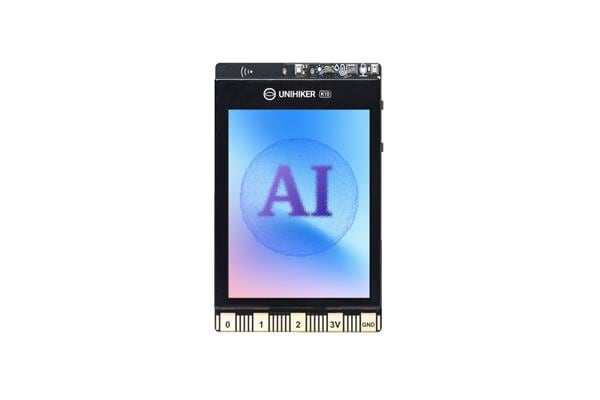
That is a useful update because the UNIHIKER K10 already combines the hardware normally needed for small AI and IoT experiments: a 2.8-inch colour display, 2MP camera, dual microphones, speaker, Wi-Fi, Bluetooth, onboard sensors, RGB LEDs and expansion ports. ESP-Claw adds an agent-style interaction layer on top of that hardware, so makers can experiment with sensing, decision-making and physical output using a more conversational workflow.
For the official announcement, read DFRobot’s UNIHIKER K10 ESP-Claw launch release. For hardware details, cross-check against the DFRobot UNIHIKER K10 product page and the official UNIHIKER K10 documentation.
Store note: Check UNIHIKER K10 availability in the Electromaker Store. If you need a Linux-based UNIHIKER board instead, compare it with the UNIHIKER M10 IoT Python single-board computer.
UNIHIKER K10: what is new?
The main update is official ESP-Claw support. DFRobot says the UNIHIKER K10 has joined the Espressif ESP-Claw mainline as a supported third-party development board. In practical terms, that means K10 owners can flash ESP-Claw firmware and use the board as a small local AI agent platform rather than only as a conventional block coding, Arduino or MicroPython development board.
ESP-Claw is Espressif’s chat-coding framework for IoT and edge AI devices. Its purpose is to let users describe hardware behaviour through natural language, then link that behaviour to sensors, actuators, messaging platforms and device-side logic. On the K10, that sits naturally alongside the onboard camera, microphones, display, speaker, RGB LEDs and environmental sensors.
This does not make the K10 a general-purpose AI computer. It remains an ESP32-S3 microcontroller board. The important change is workflow: ESP-Claw gives students, educators and makers a faster way to prototype AIoT behaviours before moving into more formal embedded code.
What is the UNIHIKER K10?
The UNIHIKER K10 is a beginner-friendly AI coding board for STEM education, maker projects and small AIoT experiments. It is an ESP32-S3 AI development board with camera, screen, microphones, speaker, sensors and wireless connectivity built into one compact device.
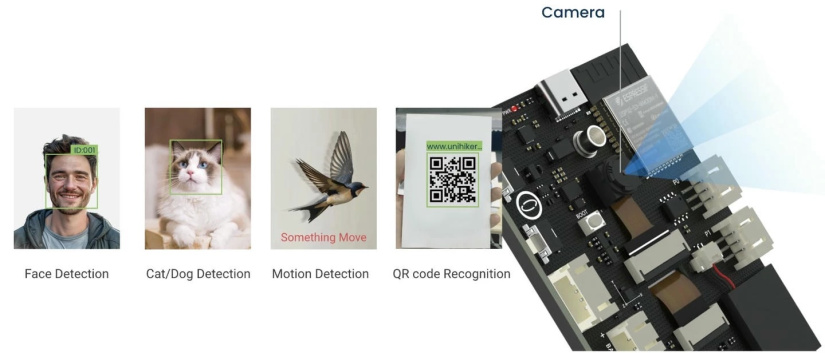
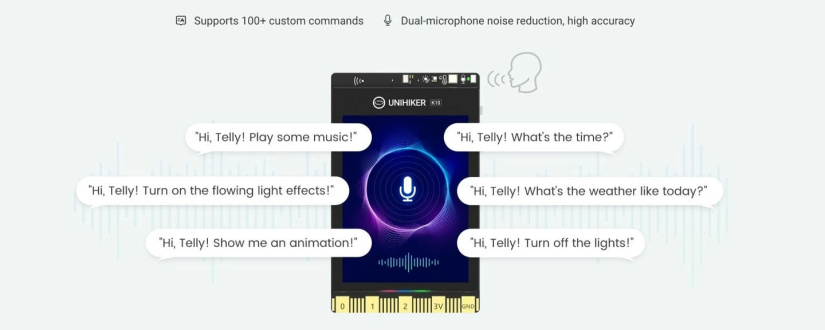
Out of the box, the K10 is designed around vision AI, voice control, TinyML and IoT. The supplied demo script shows voice activation with “Hi Telly”, built-in vision modes, QR recognition, motion detection, TinyML use cases and wireless smart-home style control. That makes it more than a bare microcontroller board, but it is still lighter and more constrained than a Linux SBC.
The easiest way to think about it is this: UNIHIKER K10 is for fast physical AI experiments on a microcontroller. It is well suited to classroom AI demos, sensor projects, voice-interactive devices, compact dashboards and first TinyML models. It is not the board to choose if your project needs a full Linux OS, SSH, VS Code, large Python libraries or heavier computer vision frameworks.
Hardware at a glance
The K10’s appeal is its integration. A normal ESP32-S3 project often needs a separate screen, camera, microphone, speaker, sensors and breakout boards. The K10 puts most of those parts on one board, reducing wiring for beginners and making repeatable workshop setups easier.
| Feature | UNIHIKER K10 specification |
|---|---|
| MCU | ESP32-S3 N16R8 |
| Processor | Xtensa LX7 dual-core 32-bit processor, up to 240MHz |
| Memory | 512KB SRAM, 384KB ROM, 8MB PSRAM and 16MB flash |
| Wireless | 2.4GHz Wi-Fi, IEEE 802.11b/g/n, plus Bluetooth 5 and Bluetooth mesh |
| Display | 2.8-inch 240 x 320 colour LCD |
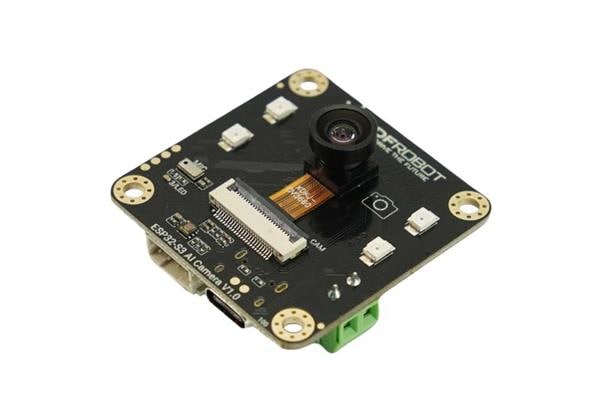
| Camera | 2MP camera with 80-degree field of view |
| Audio | Two MEMS microphones and a 2W speaker |
| Onboard sensors | AHT20 temperature and humidity sensor, LTR303ALS ambient light sensor and SC7A20H triaxial accelerometer |
| Indicators and outputs | Three WS2812 RGB LEDs, speaker and screen output |
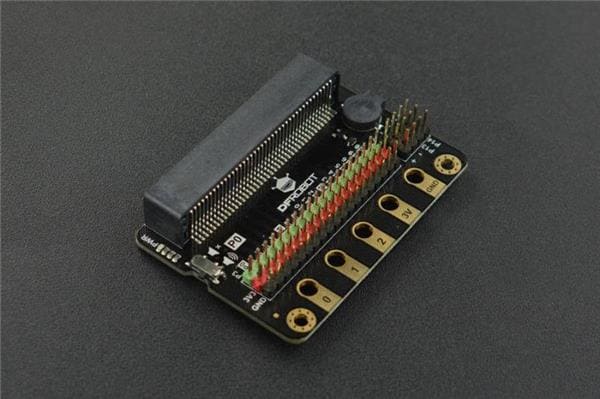
| Interfaces | USB-C, TF card slot, two 3-pin PH2.0 GPIO ports, one 4-pin PH2.0 I2C port and edge connector |
| Power | USB-C 5V DC, 2-pin PH2.0 battery interface from 3.0V to 6.0V, or edge connector |
| Best fit | Vision, voice, TinyML, environmental sensing, AIoT and classroom projects |
What ESP-Claw adds to the K10
ESP-Claw changes how you interact with the K10. Instead of writing every action as Arduino, MicroPython or block code, you can define behaviours in a chat-style interface. The K10 can then connect that intent to device functions such as sensor readings, display output, camera capture, RGB lighting or external hardware through its expansion ports.
Example ESP-Claw style requests could include:
When motion is detected, take a photo and tell me what happened.
If the room is too dark, turn on the RGB light and show a message on the screen.
Read the temperature and humidity, then send me a short summary.
This is most useful for rapid prototyping. A teacher can demonstrate how an AI agent maps intent to physical action. A maker can test a device idea before committing to a full codebase. A beginner can explore sensors, voice interaction and automation without first learning every detail of embedded programming.
There is one important caveat. “Local AI” does not mean every possible feature runs fully offline. ESP-Claw runs the agent framework on the device, but some configurations can still use network services, such as LLM providers, messaging platforms or search APIs. Treat it as local agent execution with optional online integrations, not as a guarantee that every chat demo is disconnected from the internet.
How to use UNIHIKER K10 with ESP-Claw
This UNIHIKER K10 setup tutorial focuses on the practical route: confirm the board works, flash ESP-Claw firmware, configure networking and test a first chat command. Use a direct USB-C data connection and avoid hubs during first setup.
Prerequisites
- UNIHIKER K10.
- USB-C data cable, preferably the cable supplied with the board.
- A computer with a Chromium-based browser such as Chrome or Edge for the ESP-Claw web flasher.
- 2.4GHz Wi-Fi credentials.
- An LLM provider or supported service account if your ESP-Claw configuration requires one.
- Optional messaging platform credentials, such as Telegram bot details, if you want to control the board through chat apps.
- Optional search API key if you want features that need current information, such as weather or news-style queries.
First boot check
- Connect the K10 directly to your computer or to a stable 5V adaptor using USB-C.
- Wait for the K10 screen to show the boot logo.
- Let the factory programme load.
- Press button B to switch between built-in demo modes.
- Test a simple voice interaction only after the factory demo is running normally.
Flash ESP-Claw firmware
- Open the ESP-Claw online flasher in Chrome, Edge or another Chromium-based browser.
- Hold the BOOT button on the back of the K10, then connect the board to your computer by USB-C.
- Click Connect and choose the K10 serial port.
- Select ESP32-S3 as the chip, DFRobot as the brand or series, and the K10 board option where shown.
- Enter the required configuration details, including Wi-Fi and any LLM, messaging or search settings your project needs.
- Click Flash Firmware and keep the cable connected until the process finishes.
- Press the RST button on the back of the K10 after flashing.
- If the settings do not save or Wi-Fi does not connect, use the access point shown on the K10 screen and repeat the configuration.
After flashing, start with a simple request. Ask the board to show a message, report a sensor reading or take a photo. Keep the first test small so you can separate firmware, Wi-Fi, account configuration and hardware behaviour if something fails.
Built-in AI features before you flash anything
The factory programme gives beginners a quick way to test the camera, microphones, speaker, screen and onboard AI features.
- Face detection: the camera detects faces and displays a frame on screen.
- Cat and dog detection: the built-in vision model recognises pets for simple monitoring projects.
- QR code recognition: useful for classroom check-in demos, instructions or smart displays.
- Motion detection: a good starting point for security, presence and trigger-based projects.
- Offline speech recognition: the K10 can recognise built-in voice commands without relying on an internet connection.
- Sensor mode: onboard temperature, humidity and light sensors can be used for simple environmental demos.
The video below shows the K10 responding to “Hi Telly”, switching between pre-installed vision modes, using graphical blocks, connecting external sensors and combining Wi-Fi or Bluetooth with AI applications. That makes the K10 a practical offline speech recognition development board as well as a Wi-Fi and Bluetooth AI IoT board.
Programming options beyond ESP-Claw
ESP-Claw is not the only way to work with the K10. The board also supports graphical programming, Arduino IDE, PlatformIO and MicroPython. Which route you choose depends on whether you want a no-code classroom workflow, C/C++ control, Python-like scripting or an agent-style chat interface.
| Toolchain | Best for | Important notes |
|---|---|---|
| ESP-Claw | Chat-based local AI agent experiments and zero-code AIoT prototyping | Use the web flasher, configure Wi-Fi and any required LLM or messaging services, then test small behaviours first. |
| Mind+ | Beginners, classrooms and block-based AI demos | Official K10 Mind+ guidance currently points to Windows, offline mode and Mind+ version 1.8.1 or above. |
| Arduino IDE | C/C++ sketches, serial tests and more traditional embedded development | Install the UNIHIKER BSP, enable USB CDC on Boot for serial output and note that K10 Arduino BSP support is still marked as beta in the official docs. |
| MicroPython | Python-like scripting, screen experiments and sensor projects | Flash MicroPython firmware first. The current MicroPython AI features do not support simultaneous AI and Wi-Fi use. |
| PlatformIO | More experienced embedded developers who want a project-based workflow | Better suited to users already comfortable with board packages and configuration files. |
UNIHIKER K10 vs UNIHIKER M10
The UNIHIKER K10 vs UNIHIKER M10 decision comes down to microcontroller convenience versus Linux flexibility. K10 is the better fit for lower-cost, physical AI experiments built around ESP32-S3, TinyML, built-in camera demos and ESP-Claw. M10 is the better fit when you need a Linux OS, Python workflows, VS Code and larger AI frameworks.
| Area | UNIHIKER K10 | UNIHIKER M10 | Practical impact |
|---|---|---|---|
| Core platform | ESP32-S3 MCU | RK3308 CPU | K10 suits microcontroller projects. M10 suits Linux-based workflows. |
| Operating system | No OS | Linux OS | Choose M10 if your project needs normal Linux tools, packages or services. |
| Memory and storage | 512KB SRAM and 16MB flash, plus 8MB PSRAM | 512MB memory and 16GB storage | M10 has more headroom for larger applications, but K10 is simpler for small device projects. |
| Programming | Mind+, MicroPython, Arduino IDE, PlatformIO and ESP-Claw | Python, Mind+ and VS Code | K10 favours embedded and classroom workflows. M10 favours Linux Python development. |
| AI focus | TinyML, built-in vision and voice models, ESP-Claw agent experiments | Larger AI model workflows such as ML, YOLO, MobileNet and MediaPipe | Use K10 for lightweight physical AI. Use M10 for heavier Linux AI experiments. |
| Buyer fit | Beginners, STEM lessons, fast AI demos and compact IoT builds | Intermediate users who need Linux, Python and more compute | Many classrooms could use K10 first, then move to M10 when projects need Linux. |
For product availability and a Linux-based alternative, see the UNIHIKER M10 IoT Python single-board computer in the Electromaker Store.
Troubleshooting UNIHIKER K10 setup
Most early issues come from USB connection, firmware mode, toolchain selection or memory-heavy AI workflows. Use this table before assuming the board is faulty.
| Problem | Likely cause | What to try |
|---|---|---|
| K10 is not detected | Cable, hub or port issue | Use a data-capable USB-C cable and connect directly to the computer, not through a dock or hub. |
| Mind+ cannot find K10 | Wrong mode or older Mind+ version | Use Mind+ offline mode and version 1.8.1 or above. |
| Windows 7 cannot connect | Driver not installed | Install the required serial driver manually. Windows 10 and 11 should not normally need a separate driver. |
| ESP-Claw flash page does not connect | Browser or boot mode issue | Use Chrome or Edge, hold BOOT while connecting the board, then select the correct serial port. |
| ESP-Claw settings do not save | Configuration did not complete correctly | Reconnect through the K10 access point shown on the screen and repeat Wi-Fi, LLM and messaging configuration. |
| Serial Monitor is blank in Arduino IDE | USB serial is not mapped by default | Enable USB CDC on Boot before uploading, then open Serial Monitor at the correct baud rate. |
| Board reboots during AI projects | Memory-heavy screen, AI, callback or thread behaviour | Avoid screen and most AI blocks inside callbacks or subthreads. Update variables there, then refresh the screen in the main programme. |
| AI screen appears stuck | Camera or detection mode is being switched too often | Call camera display and detection mode blocks during initialisation or under clear conditions, not repeatedly at high frequency. |
| Voice command is not recognised | Command may be too short | Avoid single-syllable words such as “Hi” or “Go”. Use commands with at least two syllables, such as “Hello”. |
Project ideas for UNIHIKER K10 and ESP-Claw
The strongest projects use what the K10 already has onboard. Start with sensors, screen output, voice, RGB LEDs and camera input before adding more hardware.
- Chat-controlled desktop assistant: ask the K10 to report temperature, humidity and ambient light, then show the result on screen.
- AI room monitor: combine motion detection, camera capture and chat notifications.
- Voice-controlled light demo: use built-in offline speech recognition or ESP-Claw chat commands to control RGB LEDs.
- QR code check-in display: show instructions, scan QR codes and trigger a visible response.
- Environmental reminder device: use temperature, humidity and light to trigger reminders or screen messages.
- Electronic nose experiment: connect a compatible Gravity gas sensor and use sensor readings for simple classification experiments.
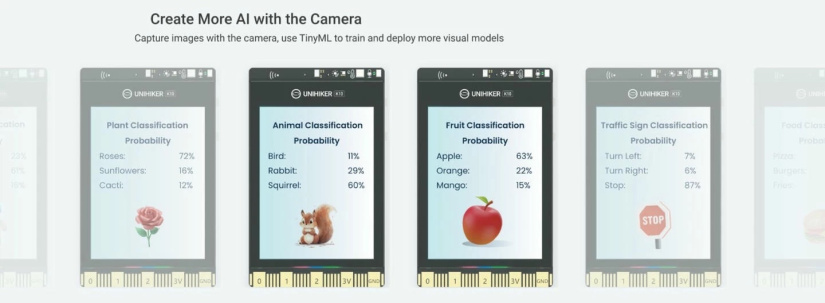
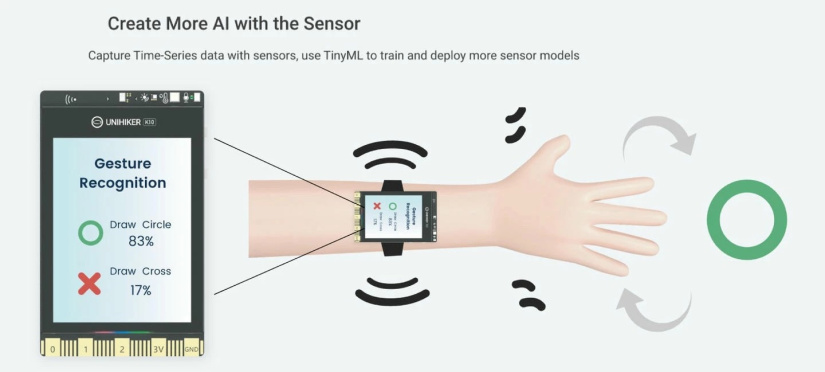
- TinyML classification project: train a small model for sensor or image classification, such as plants, fruit, traffic signs or simple movement states.
- AIoT prototype controller: use K10 as the display, sensor hub and interaction layer for a small smart-home or classroom automation demo.
Who should buy the UNIHIKER K10?
Buy the UNIHIKER K10 if you want a compact board that makes AI hardware feel tangible. It is a good fit for first AI coding lessons, STEM workshops, interactive demos, ESP-Claw experiments, voice-controlled devices, TinyML exploration and Wi-Fi or Bluetooth IoT projects.
- Buy it for: classroom AI demos, beginner-friendly block coding, built-in vision and voice features, ESP32-S3 AIoT projects, ESP-Claw experimentation and quick physical prototypes.
- Think twice if: you need Linux, full Python packages, VS Code workflows, SSH, larger AI models or long-running services.
- Do not skip: USB cable checks, firmware mode, toolchain requirements, memory limits and official documentation before building a complex project.
For buying research, start with UNIHIKER K10 listing in the Electromaker Store. For a Linux-based UNIHIKER option, compare it with the UNIHIKER M10 touchscreen Python SBC.
Final thoughts
The UNIHIKER K10 was already a useful board for vision AI, offline speech recognition, TinyML and compact IoT projects. ESP-Claw support gives it a stronger launch story and a more current use case: chat-based local AI agents on an ESP32-S3 device with real sensors and outputs.
The key is to keep expectations realistic. K10 is not a Linux AI workstation, and ESP-Claw does not remove every technical detail. You still need to flash firmware, configure services and understand the board’s limits. But for beginners, educators and intermediate makers who want to prototype physical AI ideas quickly, the K10 is now a more interesting and flexible starting point.
FAQs
These are the common questions to settle before buying, flashing or teaching with the UNIHIKER K10.
What is new about UNIHIKER K10 and ESP-Claw?
UNIHIKER K10 now supports ESP-Claw, Espressif’s chat-coding AI agent framework for IoT and edge AI devices. After flashing ESP-Claw firmware, users can define device behaviour through text or voice commands instead of building every interaction from traditional embedded code.
Is ESP-Claw on UNIHIKER K10 fully offline?
Not always. ESP-Claw brings agent-style execution to the device, and the K10 has local sensors, display, audio and AI features. However, many practical ESP-Claw configurations can still use Wi-Fi, LLM provider APIs, messaging platforms or search services. Treat it as local device-side agent control with optional online services.
How do I flash ESP-Claw firmware to UNIHIKER K10?
Use the ESP-Claw online flasher in a Chromium-based browser, connect the K10 by USB-C while holding BOOT, select the correct serial port and board, enter the required Wi-Fi and service configuration, then flash the firmware. Press RST after flashing and reconnect through the K10 access point if configuration does not save.
Which programming environment should I use with UNIHIKER K10?
Use ESP-Claw for chat-based AI agent prototypes, Mind+ for beginner block coding, Arduino IDE for C/C++ sketches, MicroPython with Thonny for Python-like scripting, or PlatformIO for a more advanced embedded workflow.
UNIHIKER K10 vs UNIHIKER M10: which should I choose?
Choose K10 for ESP32-S3 AIoT projects, built-in camera and voice demos, TinyML, ESP-Claw and lower-cost classroom use. Choose M10 if you need Linux, Python, VS Code, more memory and larger AI frameworks such as YOLO, MobileNet or MediaPipe.
Why is my UNIHIKER K10 not connecting or recognising commands?
Check the USB-C cable first, use a direct computer connection rather than a hub, confirm the correct toolchain mode and use the required firmware. For speech recognition, avoid single-syllable commands such as “Hi” or “Go” and use longer command words.

Residing on the south coast of England, Rich has spent the last few years building Electomaker.io from the ground up. He is usually found behind a laptop coordinating the rest of the EM team and occasionally finding time to contribute articles to the blog. When not tapping away at a laptop, he can be found either paddleboarding, at the beach, playing golf (badly), or camping with his family.







Leave your feedback...