





DFRobot Launches seeMote Cap and Cube for Apple Vision Pro Developers
seeMote Cap and seeMote Cube are new physical spatial input accessories from DFRobot for Apple Vision Pro developers. They are designed to help developers connect real-world tools, handheld controls and physical actions with visionOS applications.
The idea is simple: Apple Vision Pro apps already support spatial content, hand interaction and immersive interfaces. seeMote adds another layer by giving developers physical objects that can be tracked, held, pressed, moved and used as part of the app experience.
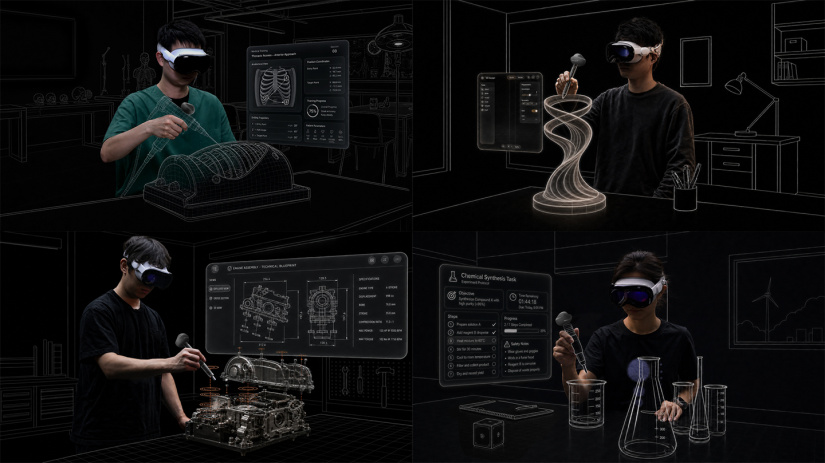
That matters for developers building training, repair, education, design review, simulation and spatial content creation tools. In many professional workflows, users do not only need to look at 3D content. They need to pick up a tool, follow a procedure, press a control, trigger feedback or map a real movement into a digital environment.
DFRobot has introduced two devices in the seeMote series: seeMote Cap and seeMote Cube. Cap is a mountable tracking module for real-world objects. Cube is a handheld spatial controller with programmable buttons and haptic feedback.
What are seeMote Cap and seeMote Cube?
seeMote is a physical spatial input accessory series from DFRobot, built for developers exploring Apple Vision Pro and visionOS applications. The series focuses on bringing physical tools and handheld controls into spatial computing workflows.
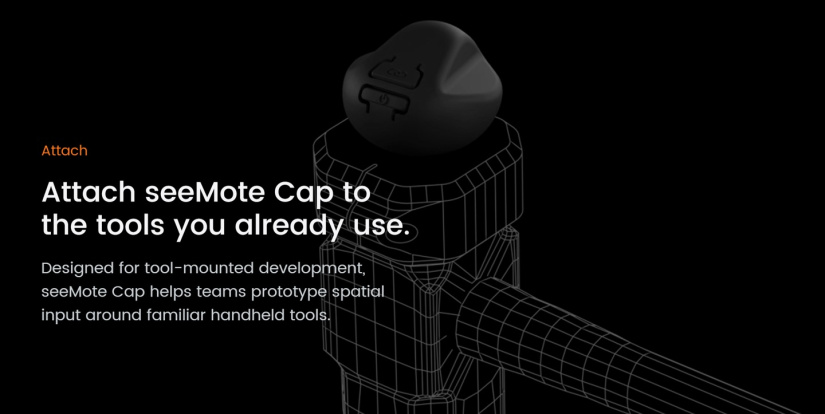
seeMote Cap is a compact spatial accessory tracking module. It can be mounted onto physical objects such as pens, screwdrivers, training instruments, laboratory tools, education props or custom handheld objects. Once attached, it allows that object to provide 6DoF motion input in visionOS apps.
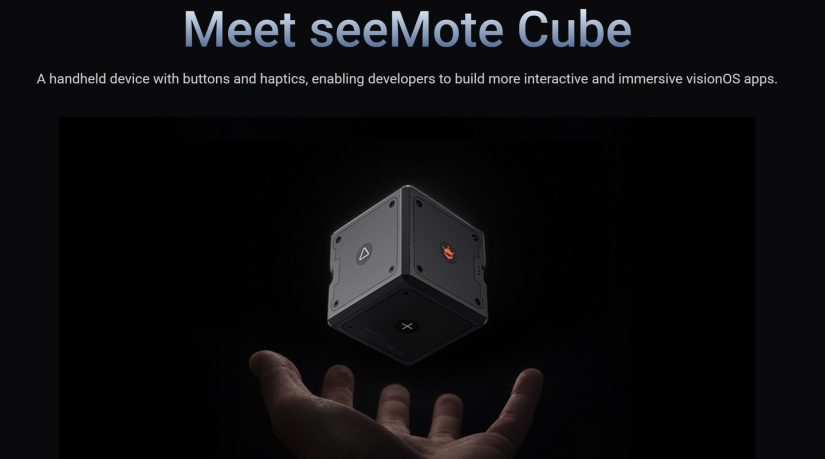
seeMote Cube is a handheld input device for spatial interaction. It adds 6DoF tracking, six programmable buttons and haptic feedback, giving developers a compact controller for prototyping custom visionOS controls and object-based interactions.
DFRobot positions the two devices as complementary tools. Cap is for tracking real-world objects people already use. Cube is for building new handheld controls and interaction patterns inside Apple Vision Pro apps.
| Device | Best For | Main Input Type | Key Hardware Features |
|---|---|---|---|
| seeMote Cap | Tracking existing physical tools and custom objects | 6DoF motion input from a mounted object | 6DoF tracking, Bluetooth, USB-C |
| seeMote Cube | Handheld spatial controls, app triggers and custom workflows | Tracked handheld input with buttons and haptics | 6DoF tracking, six programmable buttons, haptic feedback, Bluetooth, USB-C |
Why Apple Vision Pro developers need physical input tools
Apple Vision Pro development is not just about placing windows or 3D objects in space. The more useful applications often need a clear connection between physical movement and digital response.
Hand gestures work well for many general interactions, but they are not always enough for task-specific workflows. A repair trainer may need to know how a screwdriver moves. A lab simulation may need to track a training instrument. A design review app may need a physical controller that can annotate, rotate, select or trigger actions without relying only on mid-air gestures.
This is where seeMote fits. It gives developers a way to test physical input patterns that feel closer to the real task. Instead of asking users to mimic tool movement in the air, developers can track an actual object or give users a handheld controller with buttons and haptic feedback.
For beginners, this makes spatial computing easier to understand. For experienced developers, it creates a route into more specialised Apple Vision Pro applications for training, enterprise, education and research.
Key features and technical capabilities
The seeMote series is built around 6DoF spatial input. In practice, this means the device can support motion input based on movement through 3D space, including position and orientation data.
The most important feature is not only tracking. It is the link between the tracked physical object and the visionOS app. A developer can map tool movement, controller rotation, button presses and haptic feedback into the application logic.
| Feature | What It Means | Developer Value |
|---|---|---|
| 6DoF tracking | Tracks movement through six degrees of freedom, including position and orientation. | Useful for tool movement, object tracking, spatial drawing, 3D manipulation and simulation. |
| Physical tool tracking | Allows real-world objects to become tracked app inputs. | Helps build training apps that preserve the grip and motion of real tools. |
| Handheld spatial input | Lets users control spatial content with a physical handheld device. | Useful for selection, annotation, navigation, triggering events and custom controls. |
| Programmable buttons | seeMote Cube includes six programmable buttons. | Lets developers add repeatable actions without relying only on gestures. |
| Haptic feedback | seeMote Cube can provide physical feedback during interaction. | Useful for confirmation, warnings, task steps and guided workflows. |
| Bluetooth and USB-C | The seeMote series lists Bluetooth and USB-C connectivity. | Supports wireless app input and wired setup or development workflows, subject to final launch documentation. |
DFRobot notes that final configurations may vary before launch, so developers should check the latest documentation before designing a production workflow around fixed hardware assumptions.
seeMote Cap explained
seeMote Cap is the device to consider when the physical object matters. It is designed to attach to tools or props, then bring their movement into a visionOS app as 6DoF motion input.
This is useful because many professional tasks depend on how a tool is held and moved. In a guided repair app, the movement of a screwdriver could matter more than a generic gesture. In a laboratory training app, a tracked instrument could help show whether a learner followed the expected path. In an education app, a physical pointer or prop could make a lesson easier to understand.
When to use seeMote Cap
Use Cap when your project needs to track an object that already has meaning in the real world.
- Tool-tracking training apps: attach Cap to a screwdriver, wrench, marker or task-specific training tool.
- Medical and laboratory education: track physical training instruments during simulated procedures.
- Spatial drawing and annotation: attach Cap to a pen-like object for more natural marking or drawing in 3D space.
- Education props: use a tracked object to help learners interact with spatial lessons.
- Custom research tools: test how real-world object movement changes human-computer interaction in Apple Vision Pro apps.
seeMote Cube explained
seeMote Cube is designed for handheld spatial input. It combines tracking with six programmable buttons and haptic feedback, making it useful for developers who need more than object tracking alone.
Cube is a better fit when the input device is part of the app design. For example, a design review app could use Cube for selection, rotation, annotation and confirmation. A simulation app could use its buttons to switch modes. A training app could use haptic feedback to confirm that the user has reached a step or made an error.
When to use seeMote Cube
Use Cube when your project needs a flexible handheld controller with physical actions and feedback.
- 3D content controllers: use buttons to select, rotate, scale or reset virtual objects.
- Spatial annotation tools: map buttons to mark, erase, confirm, undo or change drawing modes.
- Training workflow controls: let users advance steps, request help or confirm task completion.
- Simulation controls: trigger states, change tools or switch between operating modes.
- Creative spatial apps: use movement, buttons and haptics for drawing, scene control or live performance.
When should developers use Cap, Cube or both?
The easiest way to choose between the two is to start with the role of the physical object in your app. If the object is the thing being tracked, use Cap. If the device is the control surface, use Cube.
Some projects may benefit from both. A guided repair simulation could use Cap on a training tool and Cube as a handheld menu controller. A medical education app could track a procedure tool with Cap while using Cube to step through instructions, confirm actions or trigger feedback.
| Project Need | Best Fit | Reason |
|---|---|---|
| Track a real screwdriver, pen, instrument or prop | seeMote Cap | Cap is designed to mount onto physical objects and provide 6DoF input. |
| Add buttons, mode switching and haptic feedback | seeMote Cube | Cube includes six programmable buttons and haptics for direct control. |
| Build a training app that tracks a tool and also needs menu controls | Both | Cap can track the tool while Cube handles app commands and feedback. |
| Prototype a spatial design review controller | seeMote Cube | Cube is better suited to selection, navigation and annotation controls. |
| Research how physical objects affect spatial interaction | Cap or both | Cap supports real-object tracking, while Cube adds controlled input states. |
How seeMote works with visionOS development
Apple says visionOS is the operating system for Apple Vision Pro, and developers can use familiar Apple tools and technologies to build immersive apps and games for spatial computing. DFRobot points developers toward Apple Developer resources for learning how to build visionOS apps with seeMote devices.
At a practical level, seeMote should be treated as physical input hardware for a visionOS workflow. The app needs to receive device data, interpret motion or control events, and map those events to meaningful behaviour inside the spatial experience.
For example, a tracked Cap could control the pose of a virtual tool. A Cube button could confirm a step in a workflow. Haptic feedback could signal that the user has reached the correct point in a procedure. The useful part is not the data alone, but how the app turns that data into a clear action for the user.
Real-world use cases and industry applications
The seeMote series is most relevant where physical actions and spatial content need to work together. That makes it especially useful for training, education, repair, design and simulation projects.
| Use Case | How seeMote Helps | Suitable Device |
|---|---|---|
| Industrial training | Tracks physical tools while learners follow spatial instructions. | Cap or both |
| Guided repair | Links real tool movement to step-by-step repair guidance. | Cap and Cube |
| Medical training | Uses physical props or instruments to practise spatial procedures. | Cap |
| Laboratory education | Tracks simulated lab tools and helps students learn procedural steps. | Cap or both |
| Design review | Gives users a handheld controller for inspecting, annotating and manipulating 3D content. | Cube |
| Spatial content creation | Supports drawing, triggering, pointing and controlling spatial scenes with physical input. | Cap, Cube or both |
Project ideas for visionOS developers
seeMote is a useful platform for developers who want to move beyond standard spatial app demos and test task-specific interactions. The following ideas are realistic starting points for beginner to intermediate developers, provided DFRobot releases the necessary developer documentation and example projects at launch.
- Guided repair assistant: attach seeMote Cap to a tool and show spatial instructions as the user moves through each step.
- Laboratory procedure trainer: track a training instrument and give feedback when the user follows the correct motion path.
- 3D annotation controller: use seeMote Cube buttons to switch between mark, erase, select and confirm modes.
- Spatial drawing tool: attach Cap to a pen-like object so users can draw or trace in 3D space.
- Design review pointer: use Cube as a handheld controller for pointing, selecting, rotating and marking 3D models.
- Immersive classroom prop: attach Cap to a physical object that learners use to explore a spatial lesson.
- Medical simulation tool: track a safe training prop and compare movement against expected procedure steps.
- Enterprise workflow prototype: combine Cap and Cube to test task confirmation, tool tracking and haptic prompts.
How seeMote expands spatial computing workflows
Physical input can make spatial applications easier to understand because it gives the user something consistent to hold. This matters in professional settings, where repeatability and task clarity are often more important than novelty.
For example, a button press can be easier to teach than a gesture. Haptic feedback can confirm an action without adding another visual prompt. A tracked tool can make a training task feel closer to the real workflow than a purely virtual object.
seeMote also gives developers a way to test the boundary between standard gesture-based interaction and physical computing. A good visionOS app does not need physical input for every action. The value appears when the physical device improves accuracy, comfort, confidence or workflow clarity.
You can also explore DFRobot products on the Electromaker Store if you are building hardware prototypes around sensors, robotics, STEM education or physical computing. For community projects built using DFRobot hardware checkout the DFRobot Project Hub on Electromaker.
Who should use seeMote?
seeMote is best suited to developers who already have a clear spatial computing problem to solve. It is not only for advanced teams, but it will be most useful when the app needs a physical input layer.
- Apple Vision Pro developers: use seeMote to test physical input patterns in visionOS apps.
- XR developers: use the devices to prototype interaction models that combine real-world objects and spatial content.
- Educators: build practical lessons where students interact with tracked tools or handheld controls.
- Industrial training teams: test guided workflows with physical tools and spatial instructions.
- Human-computer interaction researchers: study how tracked objects, buttons and haptics affect spatial interaction.
- Makers and students: explore how physical computing concepts apply to Apple Vision Pro development.
Who should wait before building around seeMote?
Some developers should wait for final documentation before committing too much project time. This includes teams that need guaranteed hardware specifications, confirmed APIs, production availability, compliance details or long-term support timelines.
If you only need a standard Apple Vision Pro app with hand gestures, windows, media playback or basic 3D content, seeMote may be unnecessary. Its value is strongest when physical motion, tool tracking, buttons or haptic feedback improve the app experience.
FAQ
The following questions cover the main points developers need to understand before evaluating seeMote Cap and seeMote Cube for Apple Vision Pro projects.
What are seeMote Cap and seeMote Cube?
seeMote Cap and seeMote Cube are physical spatial input accessories from DFRobot for Apple Vision Pro developers. Cap is a mountable tracking module for real-world tools and objects. Cube is a handheld spatial input device with buttons and haptic feedback.
What is seeMote Cap used for?
seeMote Cap is used to add 6DoF motion input to physical objects. Developers can attach it to tools, props, pens, training instruments or custom objects so their movement can be used inside visionOS applications.
What is seeMote Cube used for?
seeMote Cube is used as a handheld spatial controller. It supports 6DoF input, six programmable buttons and haptic feedback, making it useful for controls, mode switching, annotation, simulation and task confirmation.
Do seeMote Cap and seeMote Cube work with Apple Vision Pro?
DFRobot describes seeMote as a physical spatial input accessory series for Apple Vision Pro and visionOS developers. Developers should check the latest DFRobot documentation before launch for final compatibility and integration details.
What types of apps can developers build with seeMote?
Developers can prototype guided repair tools, industrial training apps, laboratory education tools, medical simulation apps, spatial drawing tools, design review controllers, 3D annotation systems and enterprise workflow demos.
Should I use seeMote Cap or seeMote Cube?
Use seeMote Cap when you need to track a real-world object or tool. Use seeMote Cube when you need a handheld controller with buttons and haptic feedback. Use both when your workflow needs tool tracking and separate app controls.
When will seeMote Cap and seeMote Cube be available?
DFRobot says seeMote Cap and seeMote Cube are planned to be available on DFRobot.com in Fall 2026. Developers can sign up through the official seeMote page for launch updates.

Residing on the south coast of England, Rich has spent the last few years building Electomaker.io from the ground up. He is usually found behind a laptop coordinating the rest of the EM team and occasionally finding time to contribute articles to the blog. When not tapping away at a laptop, he can be found either paddleboarding, at the beach, playing golf (badly), or camping with his family.







Leave your feedback...