





Pimoroni Inky Impression: A Practical Guide to Color E Ink Displays for Raspberry Pi
A Raspberry Pi color E Ink display makes sense when information must remain visible for minutes, hours, or days without a backlight. Pimoroni’s Inky Impression combines a six-color E Ink Spectra 6 panel with direct Raspberry Pi GPIO connectivity, Python support, physical buttons, and I2C expansion.
The result suits home automation dashboards, calendars, status panels, timetables, notices, and electronic photo frames. It does not suit video, animation, touch interfaces, or information that must update immediately.
Electromaker lists the Pimoroni Inky Impression 7.3-inch and 13.3-inch displays. This guide explains how the current Spectra 6 versions work, which size to choose, and when another display technology would be more appropriate.
What is the Pimoroni Inky Impression?
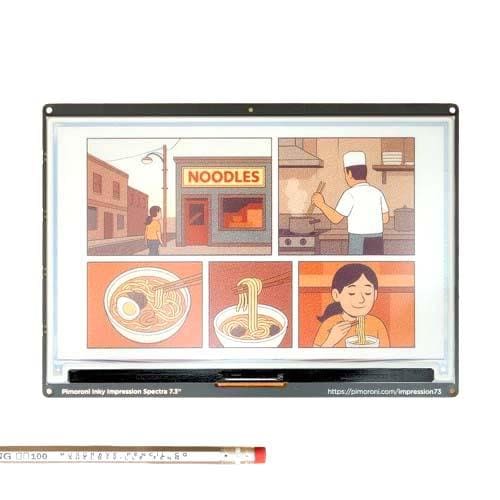
Inky Impression is an assembled color E Paper display accessory for Raspberry Pi computers with a 40-pin GPIO header. The current 7.3-inch and 13.3-inch versions use E Ink Spectra 6 technology to produce red, green, blue, yellow, black, and white output.
It is not a standalone computer. A finished project still needs a Raspberry Pi, suitable power supply, microSD card, operating system, and usually a frame or enclosure. Network access is also required when the display retrieves weather, calendar, transport, or smart-home data.
Unlike an LCD or OLED, the panel has no backlight. It reflects ambient light and preserves the last image after the Raspberry Pi and display are powered off. The trade-off is a complete update cycle measured in seconds rather than milliseconds.

| Feature | Practical benefit | Important limitation |
|---|---|---|
| Spectra 6 color E Ink | Adds color-coded charts, alerts, artwork, and photographs to an E Paper project. | The six-color palette cannot reproduce the continuous color range of an LCD or OLED. |
| Image retention | The last image remains visible without power being supplied to the panel. | The Raspberry Pi still consumes power whenever it remains switched on. |
| Reflective display | Readable in bright rooms and sunlight without producing unwanted light. | There is no built-in illumination for dark rooms. |
| Direct Raspberry Pi connection | The assembled board attaches to the 40-pin header and communicates over SPI. | It is designed primarily around the Raspberry Pi rather than broad microcontroller support. |
| Python and Pillow support | Developers can generate text, shapes, charts, and prepared images using familiar Python tools. | Layouts must be designed around slow full-screen updates and a restricted palette. |
How Spectra 6 color E Ink works
Spectra 6 is a reflective electrophoretic display technology. Electrically charged pigment particles move within microscopic display cells when the controller applies a sequence of voltage waveforms. The required pigment arrangement is brought to the viewing surface, creating the visible image.
This differs from an LCD, which controls light from a backlight, and an OLED, where each pixel emits light. E Ink uses ambient light reflected from pigment at the surface. More surrounding light generally makes the screen easier to see rather than washing it out.
The pigment arrangement is bistable. Once the controller has positioned the particles, they remain in place without continuous power. This is why an Inky Impression can display an image even after it has been disconnected from the Raspberry Pi.
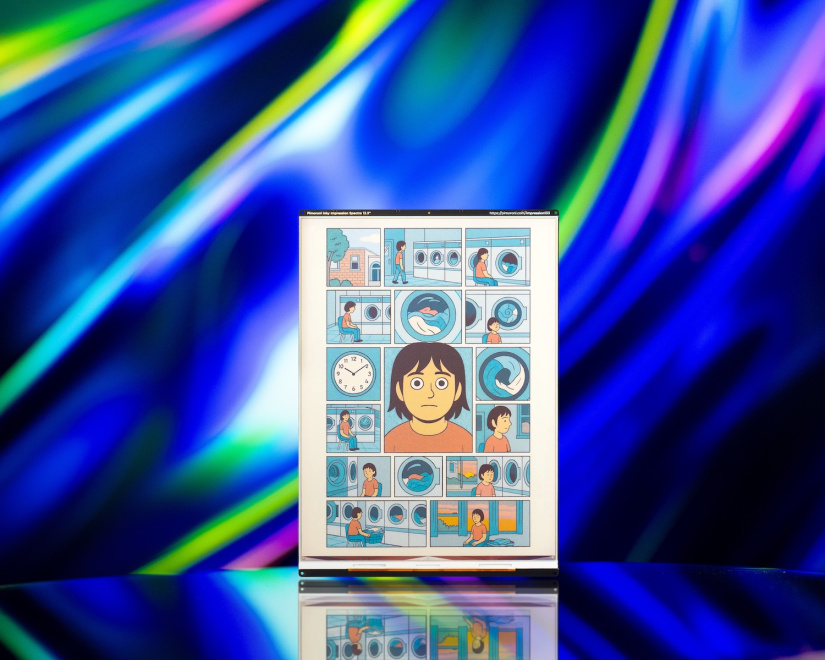
The panel provides six output colors: red, green, blue, yellow, black, and white. Intermediate shades are approximated through dithering, where neighboring pixels use different native colors to create the visual impression of another shade. Dithering expands the apparent palette, but it does not provide the smooth gradients or color accuracy of a conventional full-color screen.
For more background on reflective displays, see Electromaker’s guide to E Paper displays for Raspberry Pi. Note that older Inky Impression models used different panels, color counts, and refresh behavior from the current Spectra 6 versions.
Key technical specifications
The 7.3-inch and 13.3-inch Inky Impression models use the same basic display technology but differ significantly in resolution, physical format, aspect ratio, pixel density, and current core refresh specification.
| Specification | Inky Impression 7.3-inch | Inky Impression 13.3-inch |
|---|---|---|
| Manufacturer number | PIM773 | PIM774 |
| Display technology | E Ink Spectra 6 | E Ink Spectra 6 |
| Native colors | Red, green, blue, yellow, black, and white | Red, green, blue, yellow, black, and white |
| Resolution | 800 x 480 pixels | 1600 x 1200 pixels |
| Pixel density | 127 PPI | 150 PPI |
| Dot pitch | 0.20 x 0.20mm | 0.169 x 0.169mm |
| Aspect ratio | 5:3 | 4:3 |
| Usable display area | 160 x 96mm | 270.4 x 202.8mm |
| Board dimensions | 174.2 x 123.2mm | 297 x 210mm |
| Current core refresh specification | 28 seconds for units manufactured from April 2026 onward | 12 seconds |
| Expected complete update cycle | Typically within Pimoroni’s stated 20 to 35-second real-world range | Typically within Pimoroni’s stated 20 to 35-second real-world range |
| Recommended temperature | 0°C to 50°C | 0°C to 50°C |
| Host connection | Raspberry Pi 40-pin GPIO header with SPI | Raspberry Pi 40-pin GPIO header with SPI |
| Input and expansion | Four buttons, Qw/ST connectors, and expansion header | Four buttons, Qw/ST connectors, and expansion header |
Older product listings and reviews may quote a 12-second refresh for the 7.3-inch Spectra 6 edition. Pimoroni states that 7.3-inch units manufactured from April 2026 onward use a new AC waveform panel with a 28-second core refresh. The change provides color improvements and reduced ghosting. Units manufactured from November 2025 onward also use rear-mounted rather than side-mounted buttons.
Pimoroni Inky Impression 7.3 vs 13.3
The choice is not simply small versus large. The models use different aspect ratios, provide different amounts of layout space, and suit different viewing distances. The 13.3-inch model also has a higher current purchase cost and requires a more substantial enclosure.
| Decision area | Choose 7.3-inch | Choose 13.3-inch |
|---|---|---|
| Typical position | Desk, shelf, bedside table, equipment rack, or small wall panel | Wall, shared office, classroom, reception area, or larger room |
| Viewing distance | Best for close viewing and concise layouts | Better when several information blocks must be read from farther away |
| Layout capacity | Suitable for one dashboard, photograph, timetable, or focused status screen | Suitable for calendars, multi-panel dashboards, large signs, and detailed artwork |
| Aspect ratio | Wide 5:3 layout | More paper-like 4:3 layout |
| Mounting | PCB fits within a 180 x 130mm frame, although the screen may not be centered | PCB is 297 x 210mm, matching the basic dimensions of A4 paper |
| Refresh specification | Current panel has a 28-second core refresh | 12-second core refresh, plus transfer and ready-state overhead |
| Budget | Lower-cost route into a current Spectra 6 Raspberry Pi display | Higher-cost large-format option that also needs a larger frame or enclosure |
| Best general fit | Personal dashboards, weather displays, server panels, and compact photo frames | Family calendars, shared dashboards, noticeboards, menus, and wall art |
The 7.3-inch model is the more practical starting point for a first project. Choose the 13.3-inch version when its extra layout area and viewing distance solve a specific problem, rather than simply because it has more pixels.
Display quality, color, and sunlight readability
Spectra 6 works particularly well with bold graphics, high-contrast typography, simple illustrations, color-coded data, and photographs that already use strong colors. The panel’s 127 or 150 PPI density makes text and line graphics appear clean at sensible sizes.
| Content type | Expected result | Design guidance |
|---|---|---|
| Text | Crisp when rendered in black or another native color against a contrasting background | Use larger font sizes and avoid thin gray text created through dithering. |
| Charts | Clear when each native color has a consistent meaning | Use labels and shapes as well as color so the chart does not depend on color alone. |
| Icons and illustrations | Well suited to flat artwork and limited-palette graphics | Prepare assets around the six native colors where possible. |
| Photographs | Recognizable but stylized, with visible dithering and reduced tonal detail | Resize, crop, increase contrast and saturation, then preview the dithered result before deployment. |
| Gradients and subtle colors | Approximated by patterns of native-color pixels | Replace subtle gradients with solid regions when clarity matters more than photographic appearance. |
The display remains readable under bright indoor light and sunlight because it reflects light rather than competing with it. It is not illuminated in darkness, so a separate room light is required at night.
Sunlight readability does not mean the assembled product is weatherproof or designed for unrestricted outdoor installation. A direct-sun enclosure can exceed the panel’s recommended 0°C to 50°C range, and the exposed electronics require protection from moisture and physical damage.
Refresh speed, power use, and practical limitations
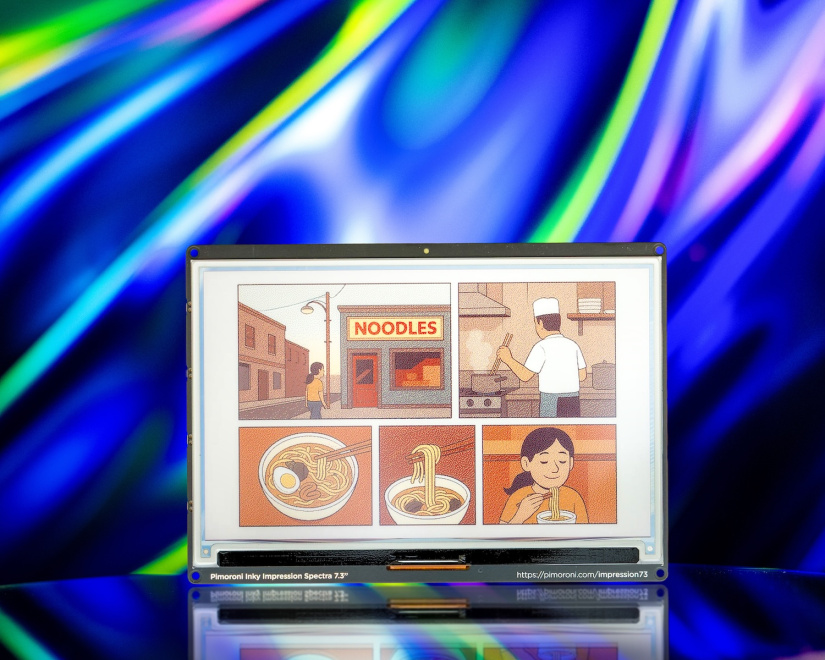
The current 7.3-inch panel has a 28-second core refresh, while the 13.3-inch version has a 12-second core refresh. Data preparation, SPI transfer, display ready-state delays, Raspberry Pi performance, and temperature add time around the panel waveform. Pimoroni advises allowing approximately 20 to 35 seconds for a complete real-world cycle across the range.
The screen will flash through its waveform while updating. This is normal and prevents the display from behaving like a responsive menu or conventional user interface. Buttons can select the next page, but the user must still wait for the full visual update.
| System state | Display behavior | Whole-system power implication |
|---|---|---|
| Refreshing | The panel is driven through its waveform and receives new image data. | The Raspberry Pi, display electronics, storage, networking, and attached sensors are active. |
| Image displayed with Pi running | The image requires no continuing panel power to remain visible. | The Raspberry Pi continues consuming power according to its model, workload, networking, and peripherals. |
| Pi shut down and power removed | The last successfully displayed image remains visible. | The system can consume no power if an external controller or switch completely disconnects it. |
| Waiting for the next scheduled update | The existing image remains unchanged. | Power depends on whether the Pi remains online or is shut down between updates. |
An “always-on” E Ink dashboard is therefore always visible, but it is not necessarily always powered. For the lowest system energy use, a project can boot on a schedule, retrieve data, refresh the display, shut down cleanly, and then use an external timer or power controller to disconnect the Pi.
Do not publish unverified total-power figures for a complete project. A Raspberry Pi Zero 2 W, Raspberry Pi 5, USB storage device, wireless connection, and environmental sensor can have very different power requirements.
Reliable deployments should also preserve the last useful screen when a network request fails. Retrieve and validate new data before calling the display update. Include a visible timestamp so users can identify stale information without replacing a valid dashboard with an error page.
Raspberry Pi connectivity and hardware controls
Inky Impression attaches to the standard Raspberry Pi 40-pin GPIO header. The included booster header and standoffs allow a full-size Raspberry Pi to clear its USB and Ethernet connectors. A header-equipped Raspberry Pi Zero can connect directly for a thinner assembly.
| Interface | Role | Developer use |
|---|---|---|
| 40-pin GPIO header | Carries power and communication signals between the Pi and display board | Provides a compact mechanical and electrical connection without loose display wiring. |
| SPI | Transfers prepared image data to the display controller | The Python library handles normal transfers, so most projects do not need to implement the low-level protocol. |
| I2C | Supports board detection and connected I2C peripherals | The library reads board information from EEPROM, while developers can attach compatible sensors. |
| Qw/ST connectors | Provide Qwiic and STEMMA QT-compatible I2C expansion | Add temperature, humidity, air-quality, light, or other I2C sensors without building a separate wiring harness. |
| Four physical buttons | Provide GPIO-based input | Switch pages, acknowledge an alert, request an update, or select a dashboard mode. |
| Expansion header | Provides access for additional hardware | Check the current schematic for GPIO conflicts before attaching another board or custom circuit. |
Current boards have rear-mounted buttons. This protects them during shipping but means an enclosure needs suitable rear or side access. Pimoroni’s setup guide also notes that button C on the 13.3-inch model uses GPIO25 rather than GPIO16. If the supplied button example does not detect button C, update the example accordingly.
Required hardware, mounting, and enclosure planning
The display arrives assembled and includes mounting hardware, but a complete Raspberry Pi color E Paper project needs several additional components.
- Compatible Raspberry Pi: any model with a 40-pin header, including header-equipped Zero variants.
- Power supply: use the correct official or suitably rated supply for the selected Raspberry Pi.
- microSD card: required for Raspberry Pi OS and the application unless the selected Pi uses another supported boot device.
- Network connection: required for remote APIs, Home Assistant, calendars, weather, or managed signage.
- Frame or enclosure: protect the glass panel, PCB, Raspberry Pi, and power connection.
- Optional sensors: Qwiic or STEMMA QT devices can connect through the Qw/ST ports.
- Optional power controller: useful when the Pi should boot, update, shut down, and disconnect from power on a schedule.
A Raspberry Pi Zero 2 W is a sensible host for dashboards that only retrieve data and render a static image. A Raspberry Pi 4 or 5 can be justified when the project also handles databases, local analytics, image processing, or other services, but the faster board does not turn E Ink into a responsive display.
The panel is made from thin glass. Power off and unplug the Raspberry Pi before fitting or removing the board. Hold the PCB edges rather than pressing the display surface. The screen is not a touchscreen, and pressing it can crack the glass.
The 7.3-inch PCB fits within a 180 x 130mm frame, although the active screen will not necessarily be centered. The 13.3-inch PCB measures 297 x 210mm, so an A4-sized format is a logical starting point. Allow additional rear depth for the Raspberry Pi, cables, connectors, ventilation, and button access.
Getting started with Inky Impression and Python
Pimoroni recommends Raspberry Pi OS Bookworm or later and Python 3.7 or later. Its installer configures the Inky library, creates a Python virtual environment, and can install the supplied examples and their dependencies.
Prerequisites
- An Inky Impression Spectra 6 display
- A Raspberry Pi with a fitted 40-pin header
- A suitable Raspberry Pi power supply
- A microSD card running Raspberry Pi OS Bookworm or later
- Network access for downloading the library
Display your first Spectra 6 image
- Shut down and unplug the Raspberry Pi. Attach Inky Impression by holding the PCB edges. Use the included booster header and standoffs with a full-size Raspberry Pi.
- Boot Raspberry Pi OS and update its package lists and installed packages.
- Clone Pimoroni’s Inky repository and run the supplied installer.
- Accept the virtual environment, examples, and example-dependency options, then reboot the Raspberry Pi when installation finishes.
- Activate the Pimoroni virtual environment.
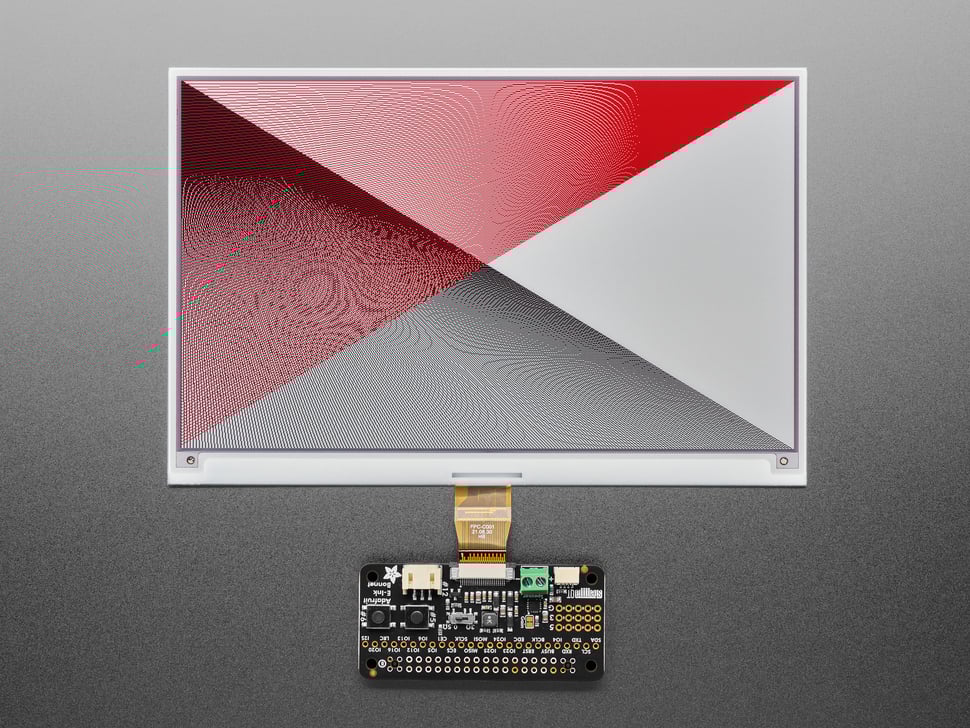
- Open the Spectra 6 examples directory and run the stripes example. The library should detect the board from its EEPROM and refresh the six-color test image.
- Build the final layout with Pillow, call
set_image(), and callshow()only after the complete image has been validated.
Run the following commands on Raspberry Pi OS Bookworm or later:
sudo apt update
sudo apt upgrade

git clone https://github.com/pimoroni/inky
cd inky
./install.sh
sudo reboot
After rebooting, activate the installer-created virtual environment and run the Spectra 6 test:
source ~/.virtualenvs/pimoroni/bin/activate
cd ~/Pimoroni/inky/examples/spectra6
python stripes.py
If automatic detection fails, check that the board is fully seated and facing the correct direction. Use sudo raspi-config to confirm that both I2C and SPI are enabled. Raspberry Pi OS Lite may also require Git to be installed before cloning the repository.
Python and Pillow development workflow
A useful Inky Impression application creates the entire screen as an image before initiating a refresh. Data retrieval, validation, layout, palette conversion, and error handling should all finish before the panel is updated.
Runnable six-color status screen
This example targets Raspberry Pi OS Bookworm or later with Pimoroni’s Inky installer, Pillow, and the supplied Fredoka One font dependency. It automatically uses the detected screen resolution and restricts the layout to native Spectra 6 colors.
#!/usr/bin/env python3

from datetime import datetime
from PIL import Image, ImageDraw, ImageFont
from font_fredoka_one import FredokaOne
from inky.auto import auto

display = auto()

width = display.width
height = display.height
margin = max(20, width // 30)

title_font = ImageFont.truetype(FredokaOne, max(28, height // 14))
body_font = ImageFont.truetype(FredokaOne, max(22, height // 20))
small_font = ImageFont.truetype(FredokaOne, max(16, height // 28))

canvas = Image.new(
    "P",
    (width, height),
    display.WHITE
)
draw = ImageDraw.Draw(canvas)

draw.text(
    (margin, margin),
    "WORKSHOP STATUS",
    fill=display.BLACK,
    font=title_font
)

panel_top = margin + title_font.size + margin
panel_height = max(90, height // 4)

draw.rectangle(
    (
        margin,
        panel_top,
        width - margin,
        panel_top + panel_height
    ),
    fill=display.GREEN
)
draw.text(
    (margin * 2, panel_top + margin),
    "NETWORK ONLINE",
    fill=display.BLACK,
    font=body_font
)

second_top = panel_top + panel_height + margin
draw.rectangle(
    (
        margin,
        second_top,
        width - margin,
        second_top + panel_height
    ),
    fill=display.YELLOW
)
draw.text(
    (margin * 2, second_top + margin),
    "BACKUP COMPLETE",
    fill=display.BLACK,
    font=body_font
)

updated = datetime.now().strftime("Updated %Y-%m-%d %H:%M")
draw.text(
    (margin, height - margin - small_font.size),
    updated,
    fill=display.BLUE,
    font=small_font
)

display.set_image(canvas)
display.show()
Save the script as status_screen.py, activate the Pimoroni virtual environment, and run it with python status_screen.py. Each run performs a complete display update.
Preparing photographs and generated graphics
A photograph should be resized and cropped to the panel’s native aspect ratio before it reaches the display library. The 7.3-inch model uses 800 x 480 pixels at 5:3, while the 13.3-inch version uses 1600 x 1200 pixels at 4:3.
- Retrieve or open the source image.
- Correct its orientation and crop it to the display aspect ratio.
- Resize it to the panel’s native resolution.
- Increase contrast or saturation when the source looks muted after conversion.
- Convert and dither the image into the Spectra 6 palette.
- Inspect the result before deploying it across multiple displays.
- Send the finished image to the display with one full update.
Strong illustrations, posters, comic artwork, and photographs with large color areas generally convert more successfully than low-contrast images, subtle skin tones, or scenes dominated by smooth gradients.
Real-world uses and sensible update intervals
Inky Impression works best when information stays useful throughout the refresh cycle and remains relevant for several minutes or longer. The table below maps common applications to realistic update strategies.
| Application | Suggested update pattern | Suitable size | Design note |
|---|---|---|---|
| Home Assistant summary | Every 5 to 15 minutes or after an important state change | Either | Show temperatures, energy, security state, and exceptions rather than every device control. |
| Weather and travel display | Every 30 to 60 minutes, with an additional morning update | 7.3-inch | Cache the last successful forecast in case the external service is unavailable. |
| Family calendar | After calendar changes and at scheduled intervals | 13.3-inch | The larger 4:3 canvas provides more space for several days, tasks, and household members. |
| Server health panel | Every 5 to 15 minutes | 7.3-inch | Use another alert channel for incidents that require immediate notification. |
| Room sign or timetable | When bookings or scheduled events change | Either | Include the last update time so users can judge whether the schedule is current. |
| Photo or art frame | Hourly, daily, or on demand | Either | Preprocess images and review the dithered output before automatic rotation. |
| Menu or low-frequency signage | Only when published content changes | 13.3-inch | The panel is best for indoor or protected signage where video is unnecessary. |
| Environmental sensor panel | At fixed intervals or when readings cross a threshold | 7.3-inch | A Qwiic or STEMMA QT sensor can connect through the Qw/ST interface. |
Practical project ideas
- Energy dashboard: retrieve smart-meter, solar, battery, and tariff data from Home Assistant. Use red for unusually high consumption and green for surplus generation.
- Workshop status board: show equipment availability, environmental readings, maintenance warnings, and active projects. Assign the buttons to individual pages.
- Family information board: combine appointments, school events, household tasks, meal plans, and weather on the 13.3-inch model.
- Battery-aware remote panel: start the Pi on a schedule, update the screen, shut down cleanly, and leave the image visible while power is disconnected.
- Classroom data display: collect daily sensor readings and render clear graphs that encourage students to work within a constrained visual palette.
- Digital art frame: rotate curated artwork from local storage or a network folder, with each image converted to the Spectra 6 palette before display.
Color E Ink vs monochrome E Paper, LCD, and OLED
Inky Impression is not automatically the best E Ink display for every Raspberry Pi project. The right technology depends on update frequency, lighting, color requirements, power strategy, viewing distance, and whether touch or animation is required.
| Display type | Color and motion | Power and visibility | Best fit |
|---|---|---|---|
| Spectra 6 color E Ink | Six native colors, slow full updates, and dithered intermediate shades | No power needed to retain an image; reflective and sunlight-readable | Color dashboards, artwork, calendars, signs, and photo frames |
| Monochrome E Paper | Black and white, with some panels offering faster or partial updates | Excellent image retention and bright-light readability | Text, labels, simple status data, and projects where color is unnecessary |
| LCD | Full color, smooth animation, and broad touchscreen availability | Requires continuous power and a backlight; sunlight performance varies | Responsive dashboards, menus, video, charts, and interactive controls |
| OLED | Fast response, strong contrast, and emissive color | Requires continuous power and may be difficult to read in strong sunlight | Compact indoor interfaces, dark-room use, and animated status displays |
Choose monochrome E Paper when text clarity, lower hardware cost, or faster updates matter more than color. Choose LCD or OLED when users expect immediate feedback, animation, touch input, smooth graph movement, or accurate photographic color.
Pimoroni Inky Impression vs Waveshare Spectra 6
Waveshare offers a direct 7.3-inch Spectra 6 alternative with the same 800 x 480 resolution and six-color palette. The main difference is not the underlying display concept. It is the development and integration experience around the panel.
| Area | Pimoroni Inky Impression 7.3 | Waveshare 7.3-inch Spectra 6 |
|---|---|---|
| Resolution and palette | 800 x 480, six colors | 800 x 480, six colors |
| Integration | Assembled Raspberry Pi-focused board with mounting hardware | Available as a raw display or with an optional driver HAT and adapter hardware |
| Supported platforms | Focused on Raspberry Pi computers with a 40-pin header | Documentation covers Raspberry Pi, Arduino, STM32, Jetson Nano, and other controllers |
| Controls and expansion | Four buttons, Qw/ST connectors, and expansion header | Basic display assembly does not provide the same integrated button and Qw/ST arrangement |
| Software approach | Pimoroni installer, Python library, automatic board detection, and Spectra 6 examples | Vendor examples and drivers for several programming environments and controller families |
| Published core refresh | 28 seconds for current units made from April 2026 onward | 12 seconds for the referenced Waveshare 7.3-inch E model |
| Best reason to choose it | Integrated Raspberry Pi experience with buttons, sensor expansion, mounting, and Python support | Broader controller support and more modular hardware choices |
Choose Pimoroni when the project is Raspberry Pi-based and the integrated buttons, Qw/ST connectors, mounting hardware, and Python workflow reduce development effort. Consider the Waveshare 7.3-inch Spectra 6 display when support for Arduino, STM32, Jetson, or a custom controller is more important.
Who should choose the Inky Impression?
Inky Impression is a good match when the display must remain visible for long periods, the content changes infrequently, and color adds useful meaning or visual appeal.
- Choose it for: home dashboards, calendars, timetables, notices, server summaries, environmental data, menus, art, and photo frames.
- Choose 7.3-inch for: personal displays, desk projects, equipment panels, compact frames, and focused dashboards.
- Choose 13.3-inch for: wall-mounted calendars, shared information boards, larger signs, multi-panel layouts, and artwork viewed from farther away.
- Choose monochrome E Paper instead when: color is unnecessary and faster or partial updates are more valuable.
- Choose LCD or OLED instead when: the project needs animation, video, immediate interaction, touch control, a backlight, or broad color reproduction.
It is also a poor fit for safety-critical alerts that require immediate updates. A slow-refresh status board can summarize system health, but urgent incidents should use another notification channel.
Frequently asked questions
These questions cover the main technical and purchasing decisions developers should settle before selecting an Inky Impression display.
Does Inky Impression use power between updates?
The E Ink panel does not require power to maintain the displayed image. However, the connected Raspberry Pi continues consuming power whenever it remains switched on. A project can shut down the Pi and disconnect system power after an update while leaving the image visible.
How long does Inky Impression take to refresh?
Current 7.3-inch units manufactured from April 2026 onward have a 28-second core refresh specification. The 13.3-inch model has a 12-second core refresh. Pimoroni advises allowing approximately 20 to 35 seconds for the complete real-world update cycle, depending on the panel, Raspberry Pi, data transfer, and temperature.
Which Raspberry Pi models support Inky Impression?
Inky Impression supports Raspberry Pi computers with a standard 40-pin GPIO header, including header-equipped Pi Zero variants. Full-size models use the included booster header and standoffs to provide clearance.
Should I choose the 7.3-inch or 13.3-inch model?
Choose the 7.3-inch model for compact dashboards, equipment panels, desk displays, and personal photo frames. Choose the 13.3-inch model for wall calendars, shared dashboards, noticeboards, menus, and artwork that must be read from farther away.
Can Inky Impression display photographs?
Yes, but photographs are converted into a six-color palette using dithering. Images with strong contrast, saturated colors, and large color areas work best. Subtle gradients and color-critical photographs will look more stylized than they do on an LCD or OLED.
Is Inky Impression a touchscreen or suitable for video?
No. It has no touchscreen, backlight, or video capability. Four physical buttons can provide basic input, but the slow full-screen refresh makes the display unsuitable for animation and responsive interfaces.
What software is required?
Pimoroni recommends Raspberry Pi OS Bookworm or later, Python 3.7 or later, its Inky Python library, and Pillow for generating text, shapes, charts, and images. The official installer can create a virtual environment and install examples and dependencies.
Can the Raspberry Pi be powered off after updating the display?
Yes. After completing the display update, shut down the Raspberry Pi cleanly before disconnecting power. The last image will remain visible until the next refresh, even while the Pi and display are unpowered.

Ian Buckley is a writer, musician, and perpetual tinkerer. Commonly found surrounded by hobby electrical components, he's also a keen programmer and likes to build crazy-sounding instruments with microcontrollers. In addition to Electromaker, Ian writes over at MakeUseOf and has bylines at the likes of Online Tech Tips as well as Help Desk Geek.






Leave your feedback...