





Bitmerse Romu Review: A Tiny RP2354A USB Development Board
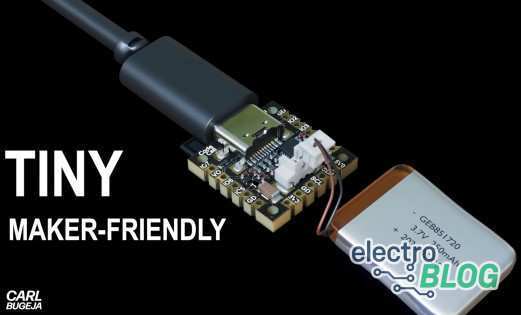
Want a touch button that sends a keyboard shortcut without another box on your desk? The Bitmerse Romu puts that idea inside a USB Type-A port. This RP2354A microcontroller development board combines preloaded MicroPython, a capacitive touch input and an RGB LED in a PCB measuring just 15.5 x 12 x 1.65 mm.
Romu suits compact USB peripherals, from a programmable macro button to hardware-passkey experiments. Its main compromise is expansion. You do not get the accessible GPIO headers of a conventional development board.
Got an idea for a tiny USB gadget? Back Romu on Crowd Supply and start planning your build.
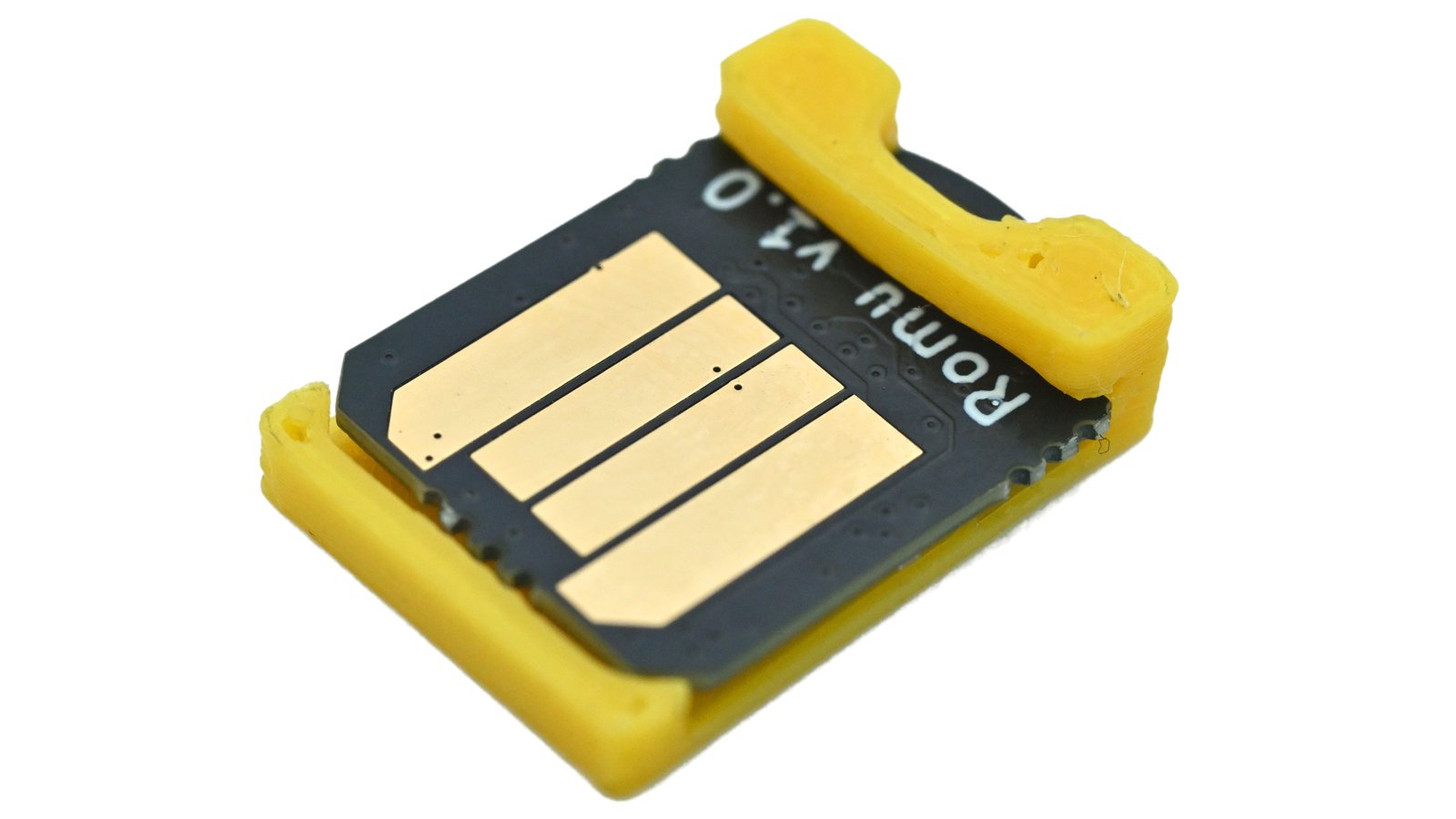
What is the Bitmerse Romu?
Romu is a programmable USB peripheral built around Raspberry Pi's RP2354A chip. Bitmerse makes the board. You plug it directly into a computer's USB Type-A port, then develop its behavior using the supplied MicroPython environment or suitable replacement firmware.
It belongs in the microcontroller category, however, Romu does not run Raspberry Pi OS or desktop applications. The touch pad gives you an input, and the RGB LED provides feedback. That is enough hardware for a shortcut button or an interaction that asks you to confirm an action. A separate boot control supports firmware loading. Capacitive touch detects contact, not your fingerprint.
Romu specifications at a glance
These are the board specifications published in Bitmerse's Romu specification sheet, with the flash packaging clarified by Raspberry Pi's silicon documentation.
| Feature | Specification |
|---|---|
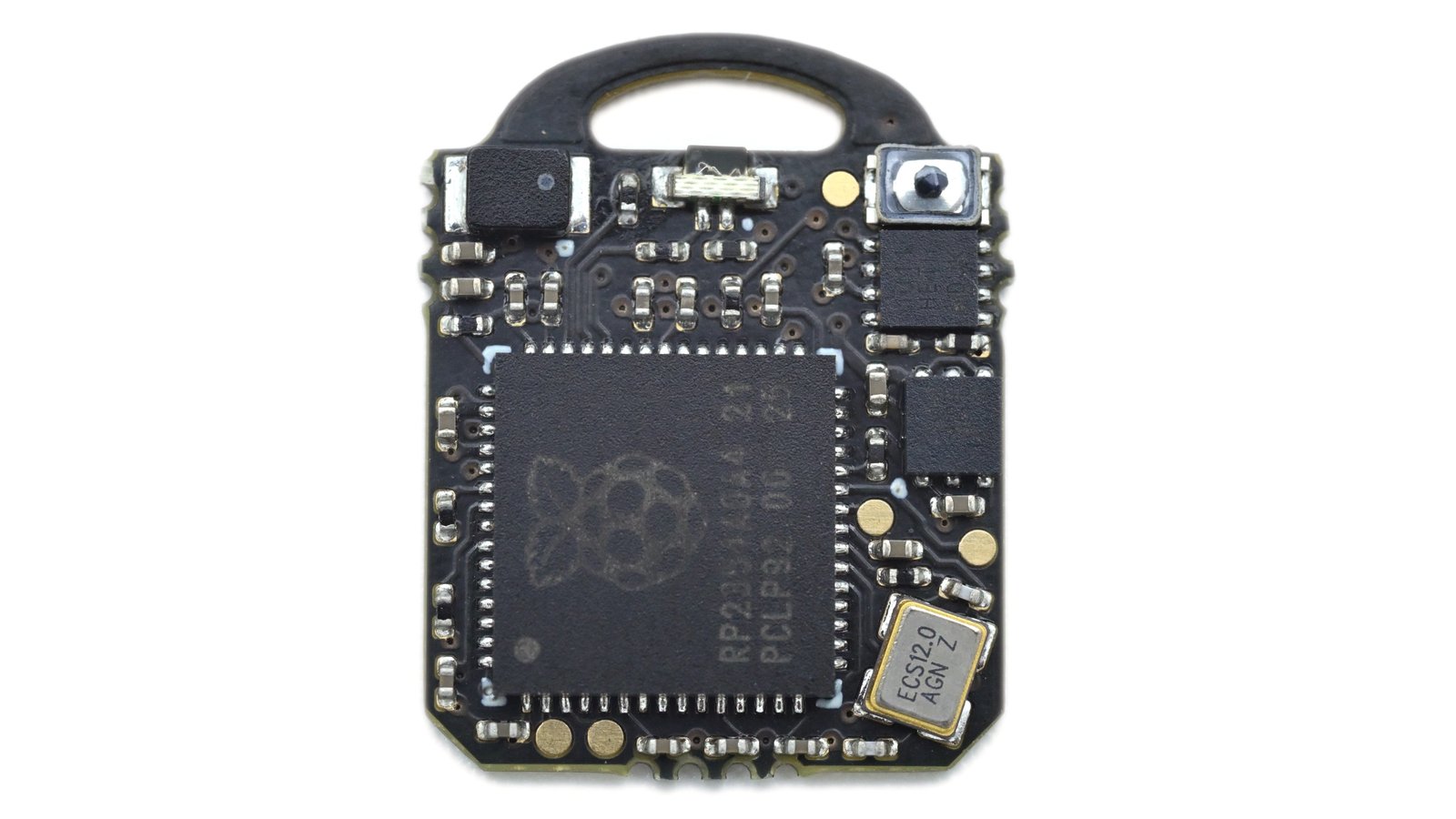
| Microcontroller | Raspberry Pi RP2354A, an RP2350-family device |
| Processor options | Dual Arm Cortex-M33 or dual Hazard3 RISC-V, up to 150 MHz |
| Memory | 520 KB SRAM and 2 MB stacked in-package flash |
| Native USB | Full-Speed USB through direct Type-A contacts |
| Power | 5 V from USB, regulated to 3.3 V onboard |
| Interaction and controls | One capacitive touch input, one RGB LED and a boot button |
| PCB dimensions | 15.5 x 12 x 1.65 mm, excluding the protective shim |
| Protection | Preinstalled 3D-printed protective shim |
| Starting environment | Preloaded MicroPython, with Thonny support |
| Optional jig | Pogo-pin fixture exposing USB Type-C, UART serial RX/TX and Serial Wire Debug (SWD) through a 20-pin connector |
Raspberry Pi identifies the RP2354A's flash as stacked memory inside the package. Romu has 2 MB, rather than the 4 MB fitted to a Pico 2 board. The processor architecture options also do not mean four cores run simultaneously. Changing architecture requires suitable firmware and tooling.
Full-Speed USB is appropriate for button events and small messages. It is not 480 Mb/s High-Speed USB. The connector shape does not change that capability.
Why the tiny USB form factor matters
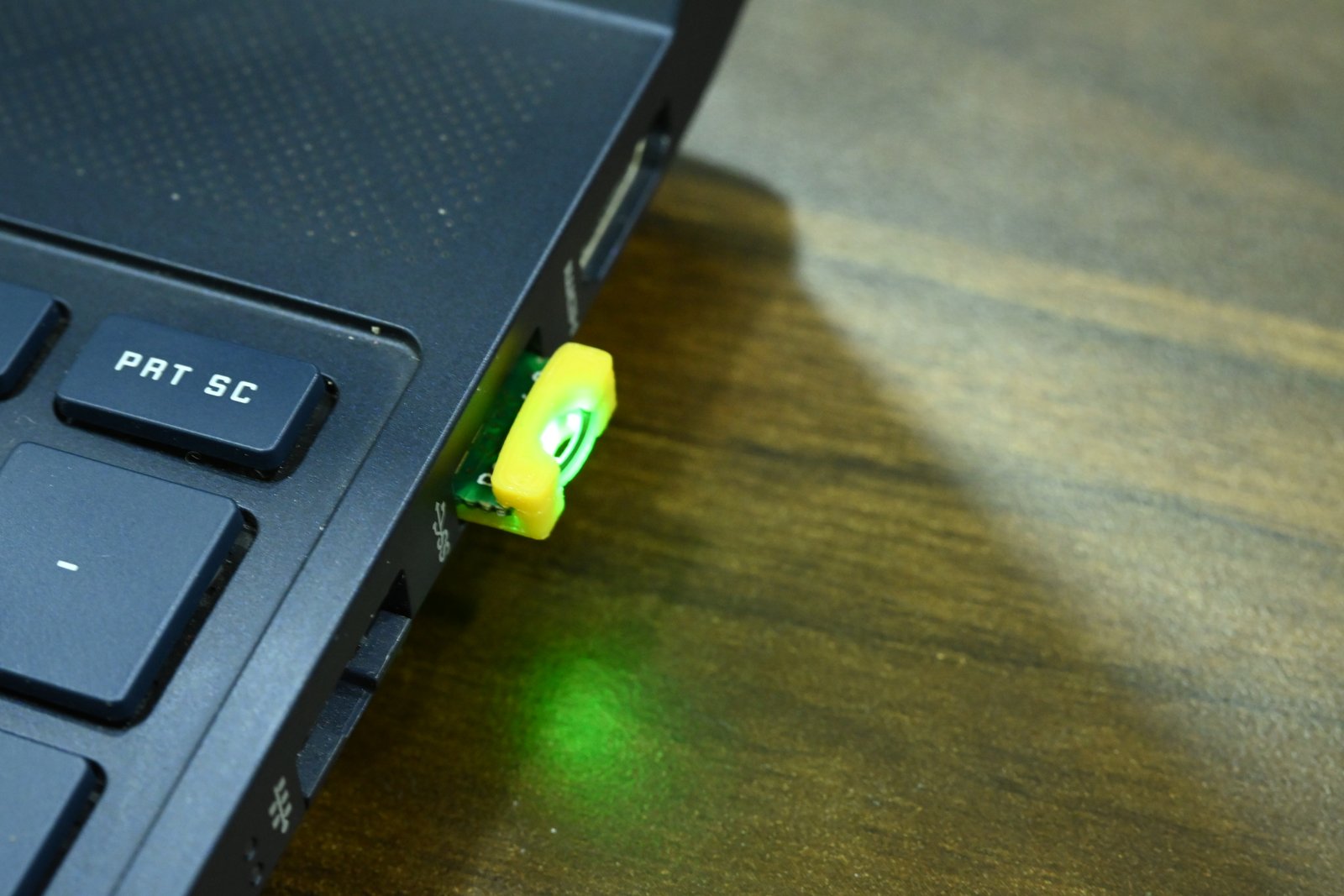
A shortcut device becomes more useful when it is easy to keep connected. Romu fits almost entirely inside a Type-A port, reducing the space needed for a board and cable. For a portable demo, you can carry the programmed peripheral rather than reconstructing a breadboard setup.
Port placement still matters. A touch input tucked behind a desktop computer is awkward to reach. Check whether your host's surrounding case leaves the touch area accessible. A USB-C-only computer needs an appropriate adapter or hub, and a recessed port may affect access. Fit will vary between hosts.
The same compactness limits expansion. Romu has no user GPIO header for plugging in switches or sensors. Its test-point access and optional jig serve development needs, but they do not turn it into a breadboard-friendly GPIO breakout.
Explore the Romu and debugging-jig bundles on Crowd Supply to find the right setup for your next USB experiment.
Programming Romu with MicroPython
Start by plugging in Romu normally and connecting Thonny to its MicroPython USB serial port. Bitmerse's official dinosaur-game guide explains the interpreter selection and version check. You can inspect the running environment before changing firmware.
The current keyboard examples specify MicroPython 1.24 or newer and require the usb-device-keyboard package and its dependencies. Preloaded MicroPython does not mean every USB library is already installed. Follow the example's package and startup instructions, particularly where changing the USB configuration disconnects the editor.
Editing a MicroPython program and replacing the interpreter are different jobs. The documented boot procedure presses the enclosure's back-right corner while connecting USB, with orientation explained in the repository's bootloader instructions. The computer then presents an RP2350 drive. The FIDO2 guide documents copying a UF2 firmware file to that drive.
That bootloader workflow is separate from saving Python files through Thonny. Use firmware and memory settings appropriate to Romu's 2 MB flash. Also match API documentation to your installed version. MicroPython's latest USBDevice documentation explicitly covers a development branch, so it is not a guarantee of the features shipped on your unit.
Romu in action
Bitmerse supplied three differently configured units for the demonstrations documented in the Product of the Week script. Each illustrates a separate behavior. They do not establish that a retail unit arrives with all three functions or runs them simultaneously.
A touch-controlled Chrome dinosaur macro
The first demonstration uses Romu as a USB Human Interface Device, or HID, presenting keyboard input to the computer. Touching the pad sends the space-bar input that makes Chrome's dinosaur jump. The LED is red at idle and blue while the input is active.
The game runs in Chrome on the host computer. Romu supplies the key event. This is a useful introduction to a USB macro button because you can see the relationship between touch, feedback and an application response. The game window must have focus, just as it would when using a keyboard.
You could adapt the input for another shortcut, but decide how the program should handle holding, releasing and repeated touches. Those choices determine whether your button behaves as you expect.
A one-touch website launcher
The second unit opens the Romu Crowd Supply page when touched, with its LED changing from red to white. The computer launches the browser and loads the page. Romu does not need onboard Wi-Fi or its own web browser for this action.
The current official website-launcher example explains the mechanism: it sends Windows+R, types the address and presses Enter. That version targets Windows 10/11 with a US keyboard layout. A macOS or Linux shortcut sequence would need adaptation.
There is a useful practical limit too. The example's character map supports a restricted set of URL characters. Query-string symbols need additional handling. A simple dashboard address could be a sensible next experiment, but check the character mapping, timing and host focus before relying on it.
A GitHub FIDO2 hardware passkey
The third supplier demonstration registers Romu as a hardware passkey for GitHub, then uses it to sign in. The user enters a security-key PIN and touches Romu when confirmation is requested. The LED changes from red to green for that request, then returns to red.
FIDO2 is an authentication standards framework used by compatible passkey authenticators. Here, the PIN provides user verification, while touching the pad confirms user presence. Touch is not fingerprint recognition. This passkey flow should also be distinguished from a U2F second-factor login.
Bitmerse's current FIDO2 example uses its RS-Key fork. Loading it replaces MicroPython. The guide labels the firmware experimental and says it has had no external security audit. Its published threat model excludes physical and laboratory attacks.
That makes this an interesting development project. It does not establish equivalence to a certified commercial security key. Use a test account and retain another login method while experimenting. The script does not identify the firmware revision used in the supplied GitHub demonstration.
Other potential projects: USB MIDI controls, custom HID interactions and automation triggers could build on the same touch-and-LED arrangement with suitable firmware. These are project ideas, not additional working implementations verified for this review.
What does the programming and debugging jig add?
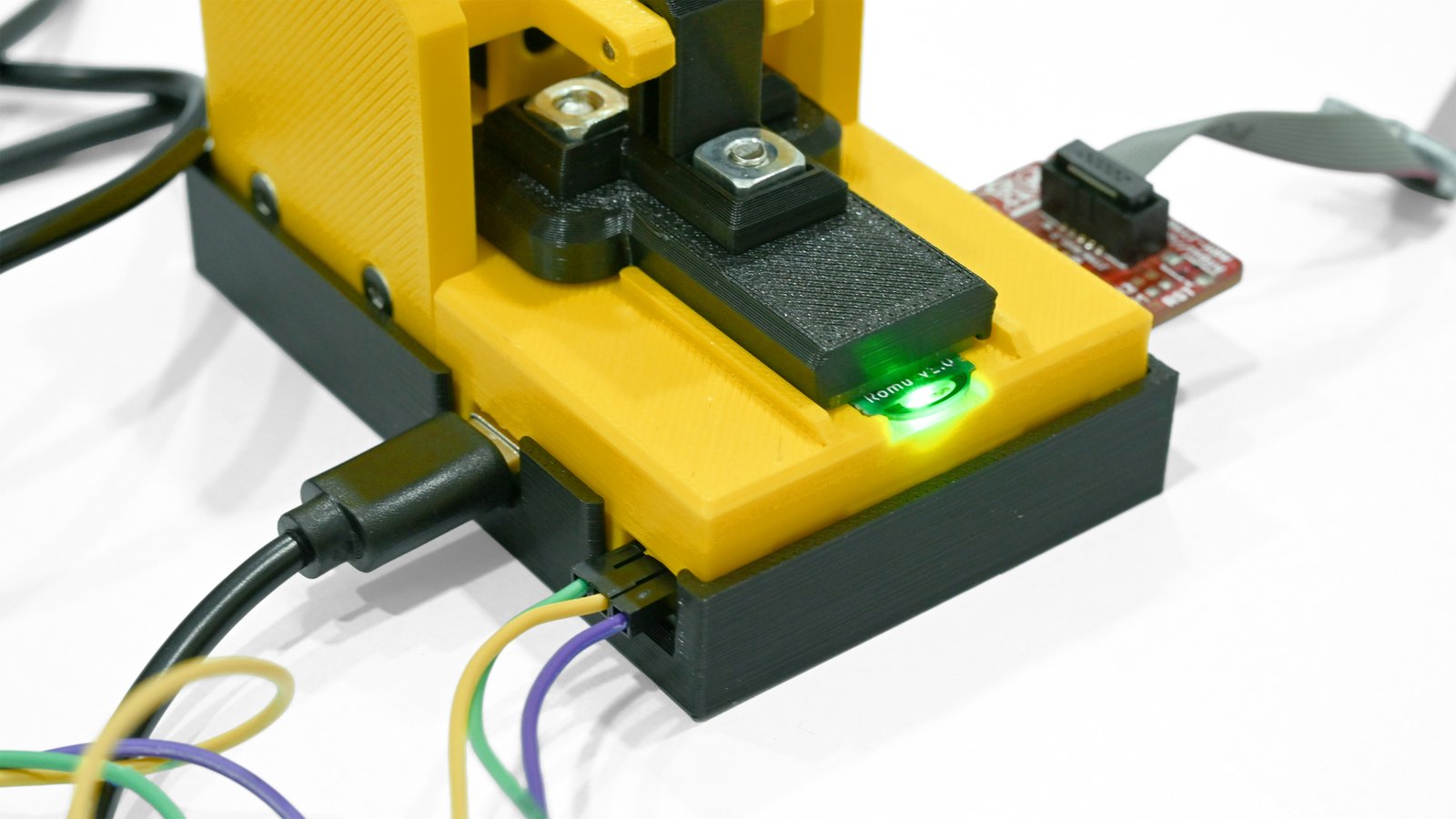
Normal MicroPython development uses Romu's USB connection. The optional jig is for work that needs physical access to the board's development interfaces.
In the supplier demonstration, a bare board sits in the fixture and is secured by turning its rear knob. Pogo pins contact the test points. According to Bitmerse's jig description, USB Type-C carries power and USB data. UART, short for Universal Asynchronous Receiver/Transmitter, exposes serial receive and transmit connections. SWD provides hardware debugging access through a 20-pin connector.
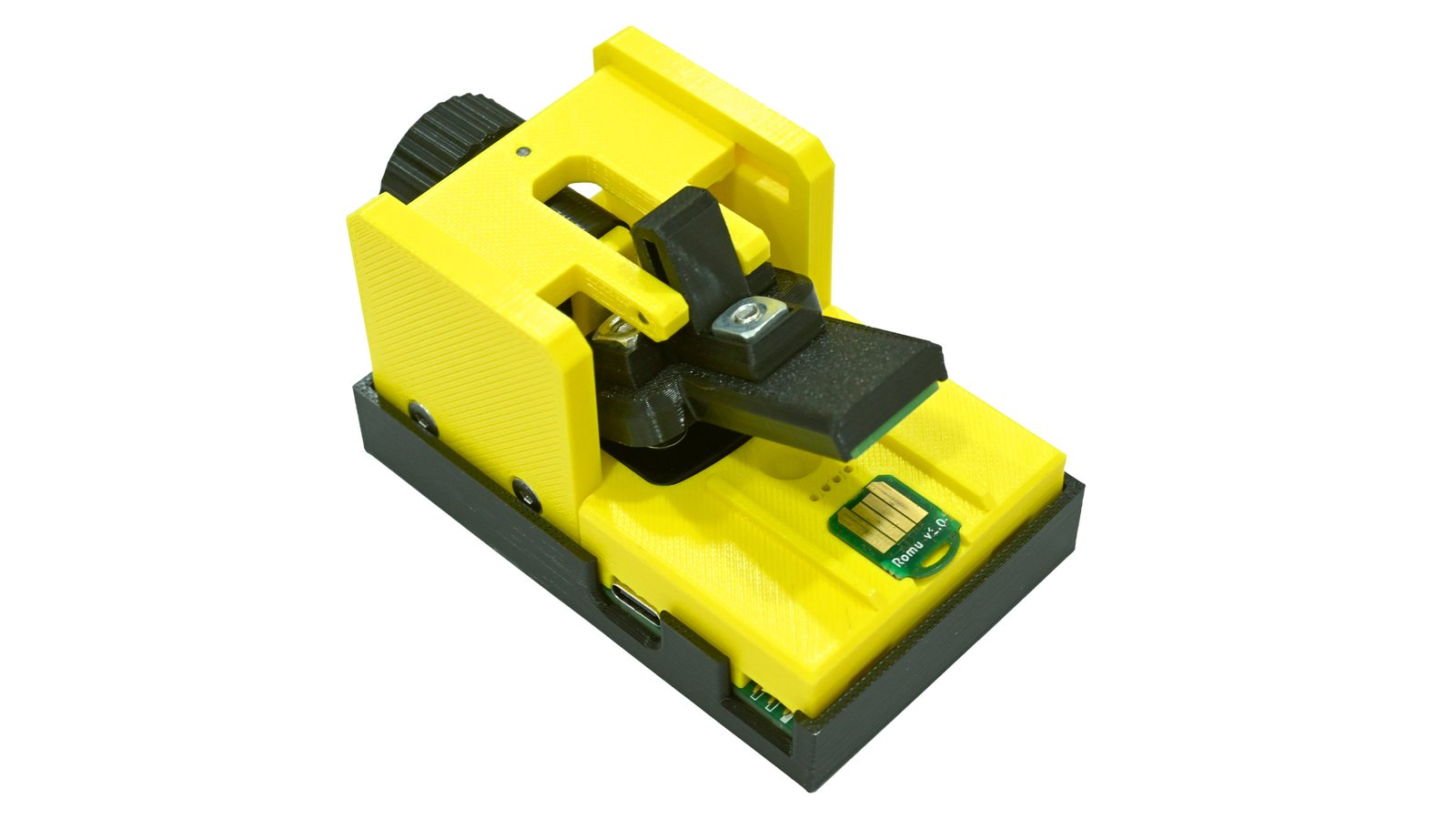
Serial logging helps explain what firmware is doing. SWD can support a compatible debugger when you need lower-level inspection. However, the JTAG-format connector describes the connection format. It does not establish an onboard active debug probe or a JTAG implementation.
Confirm the external probe and cable requirements before ordering a debugging setup. The published bundle description does not itemize them. For a straightforward touch shortcut, the jig is optional. For repeated firmware bring-up, accessible development connections are a stronger reason to consider it.
Open source files and room to customize
The official Romu repository already contains documentation, MicroPython demo programs and the RS-Key submodule reference. That gives you concrete software to inspect rather than only a list of proposed applications.
The hardware release is still pending. The hardware folder's README says schematics, PCB files, the bill of materials and enclosure STL files will be published before backer units ship. Do not plan a hardware redesign around files that are not yet available.
Licenses differ by component. The repository lists CC BY-SA 4.0 for documentation, CERN-OHL-P-2.0 for hardware and MIT for its own software. RS-Key is separately licensed under AGPL-3.0. Check the relevant files when adapting or redistributing a project.
Romu vs a Raspberry Pi Pico and other tiny USB boards
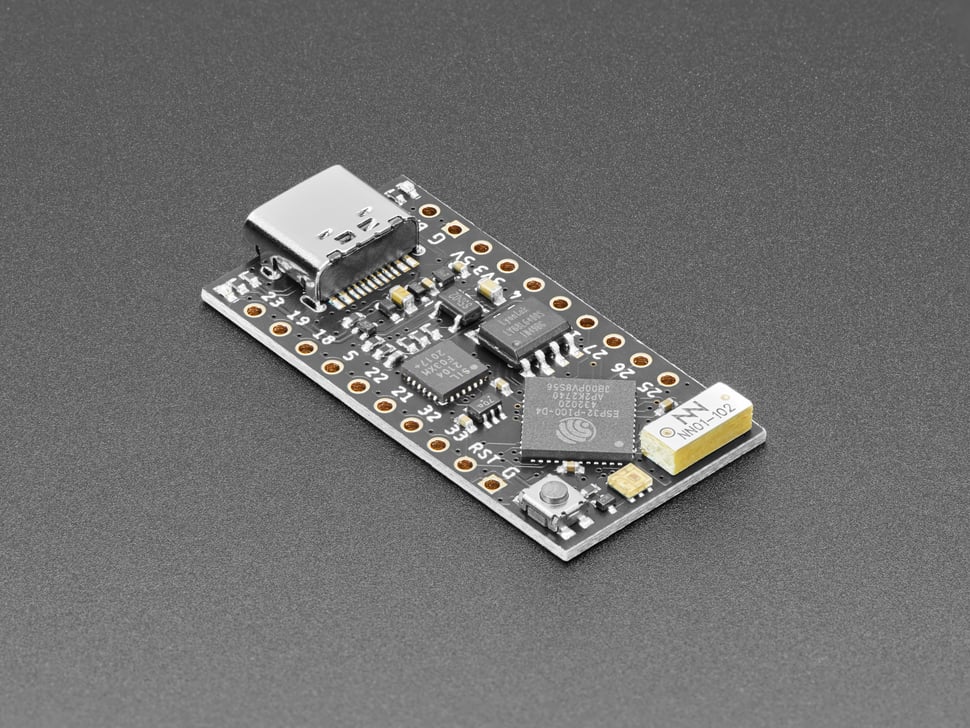
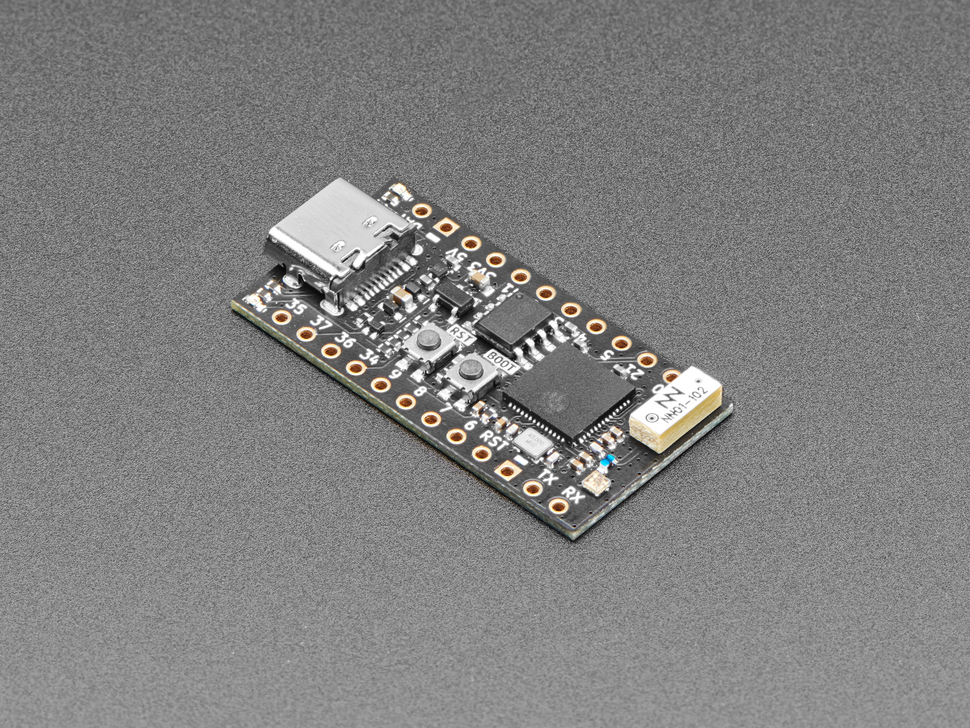
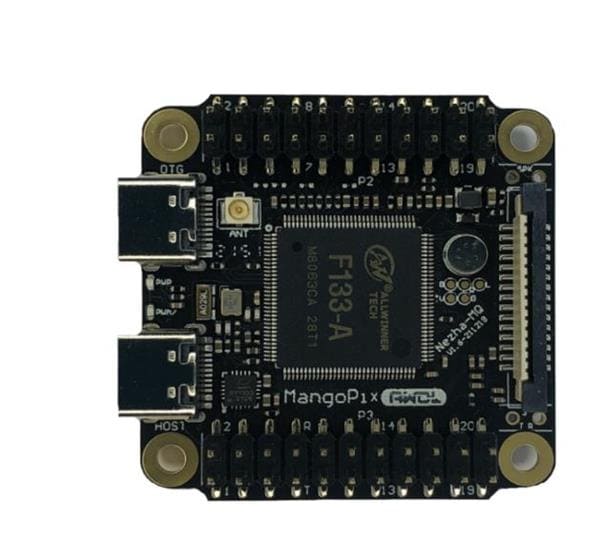
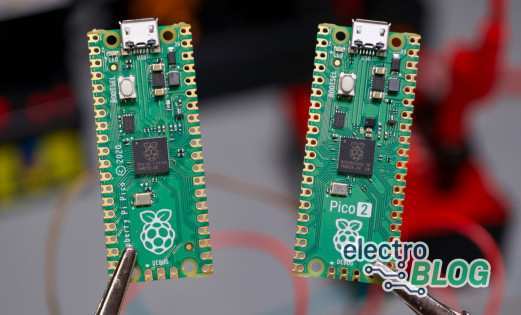
A Pico-style board is easier to recommend when your project needs accessible GPIO, several physical buttons or external electronics. Romu is more appealing when the finished peripheral can use its existing touch input and LED. Our Pico 2 overview provides context for the conventional development-board format.
For multiple shortcuts, the Pico macro-pad project shows why a larger board and separate keys may suit your build. Its hardware and software require their own setup. It is not a drop-in Romu tutorial.
Likewise, choose a board with documented wireless hardware if you need Wi-Fi or Bluetooth. Romu has neither. When comparing similarly tiny USB boards, prioritize maintained firmware, accessible controls and your required interfaces over footprint alone.
Who should choose Romu?
Choose Romu when a single touch input and an LED are enough, and making the USB peripheral small is part of the project. The official keyboard examples give learners something visible to build toward. More experienced developers can explore the USB behavior and alternate firmware.
A conventional board offers more room for wiring and expansion. An established security key better suits someone seeking a supported everyday authenticator. Romu's value lies in learning and customizing a compact peripheral, rather than replacing every kind of development board.
As checked on October 19, 2026, Romu's Crowd Supply campaign listed a single unit at $40 USD and a Romu-with-jig bundle at $65 USD, before shipping. Estimated fulfillment was April 2027. These are campaign orders, with delivery estimates subject to change. If the compact format solves your project, explore the current options there.
Help bring this compact, programmable USB board to more makers by supporting Bitmerse's Romu campaign.
Frequently asked questions
These are the main points to check before choosing your hardware or firmware.
Is Romu a Raspberry Pi Pico?
No. It is Bitmerse's USB development board using Raspberry Pi RP2354A silicon. It is also distinct from a Linux Raspberry Pi computer.
Does Romu have GPIO headers or wireless?
It has no user GPIO header, Wi-Fi or Bluetooth. The optional jig exposes documented USB, UART and SWD connections through board test points.
Can Romu work as a USB macro button?
Yes, with suitable programming. The official MicroPython dinosaur example sends space-bar keyboard input using an additional USB keyboard library.
Can Romu run FIDO2 firmware?
The current official example builds RS-Key for Romu. It replaces MicroPython and is explicitly experimental and unaudited.
Do I need the debugging jig?
No for ordinary USB MicroPython programming. Consider it when you need the physical UART and SWD connections, allowing for compatible external tools.
Are all the design files available now?
No. Documentation and software examples are public, but the hardware folder still promises its design files before shipment. Check the repository for subsequent releases.

Residing on the south coast of England, Rich has spent the last few years building Electomaker.io from the ground up. He is usually found behind a laptop coordinating the rest of the EM team and occasionally finding time to contribute articles to the blog. When not tapping away at a laptop, he can be found either paddleboarding, at the beach, playing golf (badly), or camping with his family.








Leave your feedback...