





A Smart Irrigation System

Made by donutsorelse / Environmental Sensing / Garden / Plants / Weather
About the project
A Smart Irrigation System that automatically waters based on the weather.
Project info
Difficulty: Moderate
Platforms: Android, SparkFun, Espressif, Blues Wireless
Estimated time: 7 hours
License: GNU General Public License, version 3 or later (GPL3+)
Items used in this project
Hardware components


Story
My wife loves plants and food, and gardens tend to be her happy place. The thing is, it's also the happy place for all sorts of animals (especially deer) who want to gobble it first. So, over the course of an extremely crazy year and a half, I eventually managed to find the time to build an epic garden. But, I can't just have a project go without some sort of techy addition, so I built an automated irrigation system to go along with it.
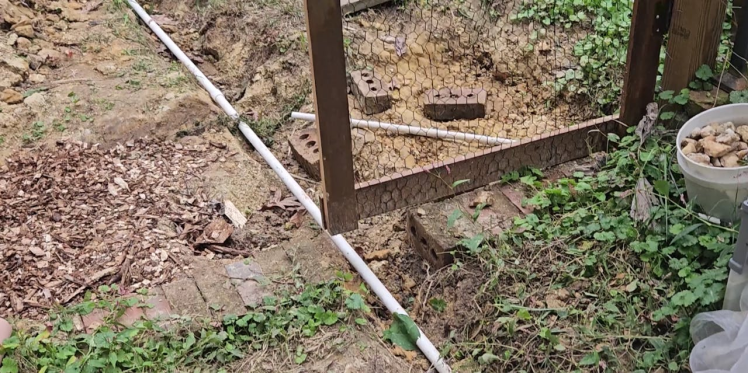
The goal of the smart irrigation is to connect to a rain barrel that I've attached to the gutters. Based on the weather, we automatically open a valve that is connected to a pvc irrigation system, that is then connected to a drip irrigation hose.
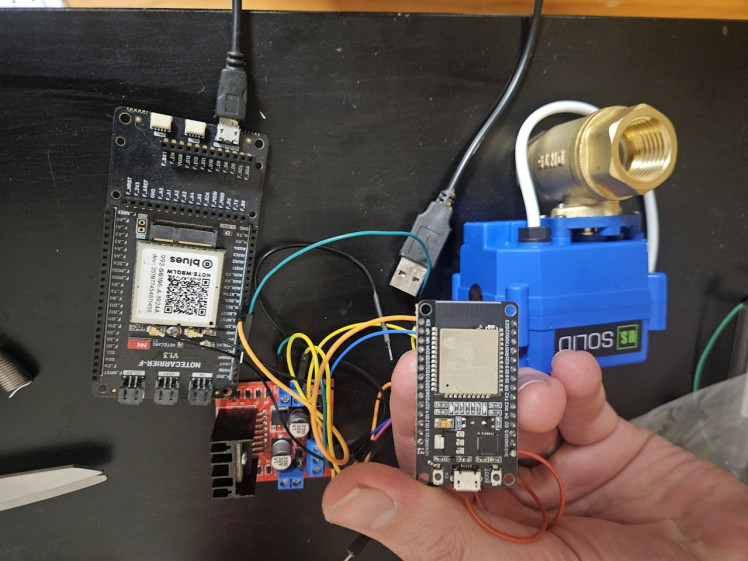
I've grown increasingly fond of the ESP32 as my go-to arduino. Even though whoever decided the order of the pins (eg. D5, D18, D19, D21...???) had to have been on some sort of substance, it just works reliably and lets me put a whole lot of code on it.
But, even though one of the upsides is that it's wifi enabled, projects that go in the yard tend to have a tough time with getting wifi signal. Where I'm putting mine in particular is on the opposite end of the house from where the wifi is, so getting any signal pretty much just doesn't happen. So to keep this all working reliably, I'm using a Notecarrier-F from Blues to make calls anytime wifi fails (which is realistically going to be most times).
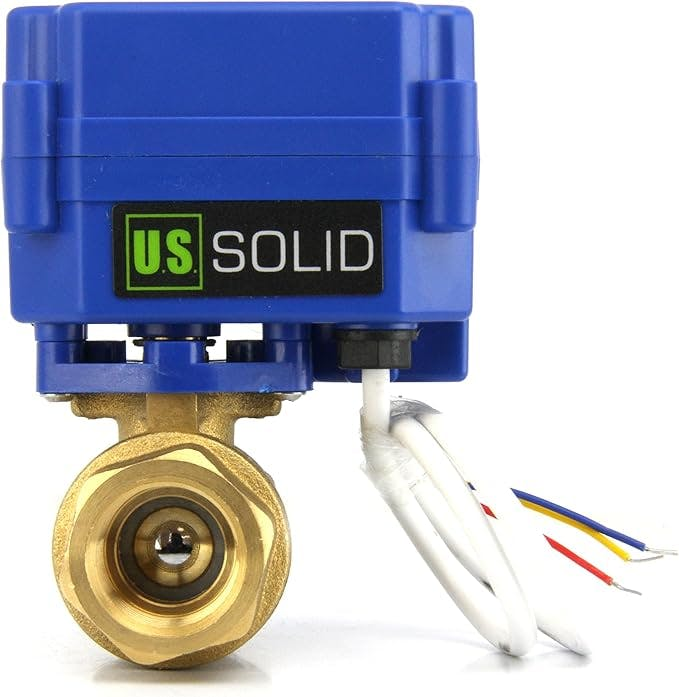
The other key hardware is the valve. I tried some other valves and they didn't work, and for no apparent reason at that. I should probably add an affiliate link here since I can attest that the valve I did get does just work, but instead I'll be a goofball and miss out on those several pennies and just provide a picture of what I got:
We do still need to connect the valve to the arduino, so for that we need one last component. I'm using a L298N Motor Drive Controller Board. This was a rare wonderful moment where I've been doing these nerdy projects long enough that I happen to have some on hand, but also managed to find them (that's the miraculous part).
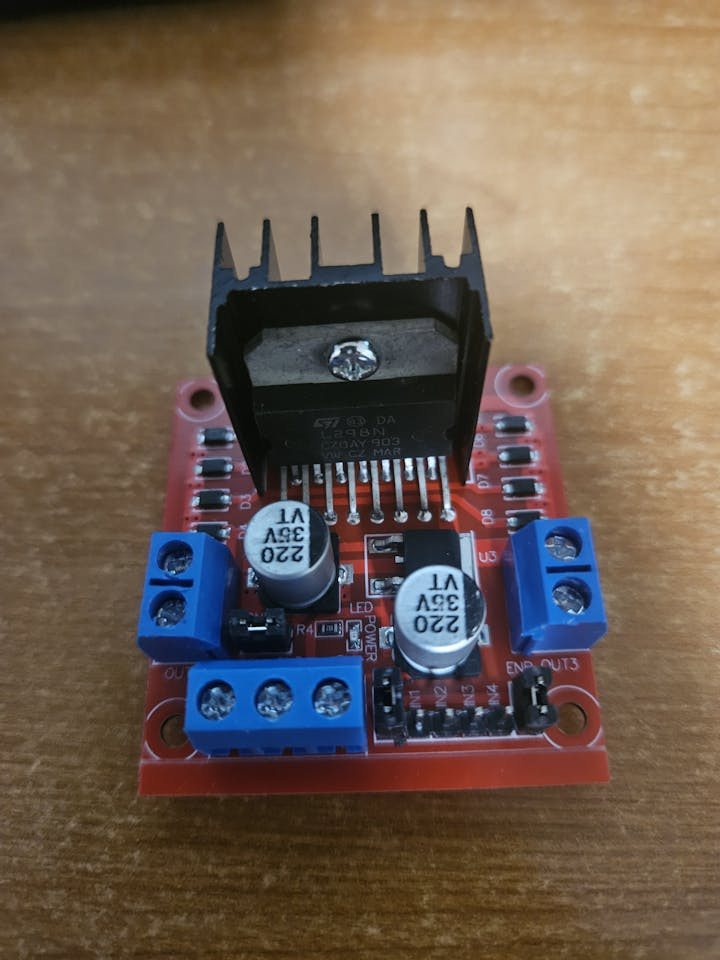
For those following along, here is the pinout:
ESP32 D18 → L298N IN3
ESP32 D19 → L298N IN4
12V power - L298N
GND of the 12V power and the ESP32 GND - L298N GND
Ball Valve Yellow → L298N GND
Ball Valve Red → OUT3
Ball Valve Blue → OUT4
ESP32 D21 (SDA) → SDA on Notecarrier-F
ESP32 D22 (SCL) → SCL on Notecarrier-F
ESP32 GND → GND Notecarrier-F
and I have the ESP32 and Notecarrier-F each powered separately via usb.
Code!There is a lot of code here, but it can be summed up relatively concisely. The main goal of all of this is to fetch weather data and decide whether to water accordingly.
For the most part, we aim to water every other day. If it rained a decent amount yesterday or there is a good chance that it rained today, skip watering today. If it is extra hot, water every day. For weather data, I tried something different than in previous projects and it seemed to work well, which is Open Meteo.
We let the device sleep when not in use, and it wakes up in the morning to fetch the weather data. We try to use wifi first, and when that fails we use Blues.
I added a couple of test fields that are pretty handy for ensuring everything works, which are the IGNORE_ALREADY_WATERED_TODAY and FORCE_NOTECARD flags. They're pretty straightforward based on the names, but if we're testing everything with weather fetches to ensure the valve opens and closes properly more than ones, we can ignore that we've already watered today. In configuring blues, we can force the code to use the notecard. This is particularly helpful, since the ESP32 will realistically be able to successfully make the wifi calls while inside, while we should expect the calls to fail outside - so we need to ensure we aren't using wifi while testing once we know that part works.

For anyone less familiar with Blues, this is a good way to send or receive data when we might not have other connectivity. I tend to use it as a go-to for my projects that will be too far away from wifi.
The step one if you're new to Blues is to follow through their Quickstart (found here) guide, which walks you through configuring everything and getting up and running. Once your project is setup, just follow the below parts and you'll be good to go.
For the Routes in this project, we're using the Proxy for Notecard Web Requests option, seen below:
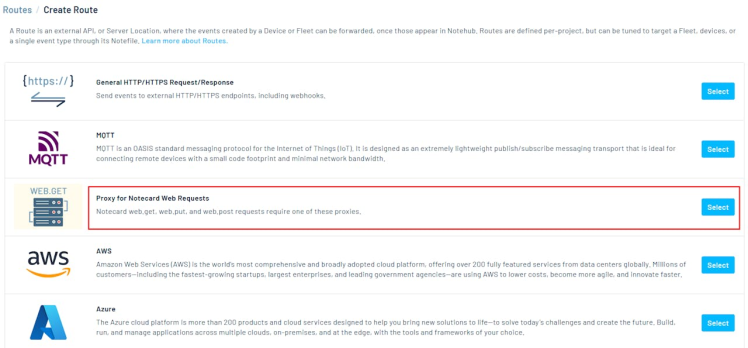
For my setup what I found worked well was to setup 2 routes in the Blues project. One fetches the data for yesterday and one fetches todays data. I find what works well for me to be including the fields in the Blues route URLs, so they're a bit long, but both the ones you'll need are below. I labeled my routes meteoY and meteoT (for Yesterday and Today, using the meteo api).
the meteoY URL:
The meteoT URL:
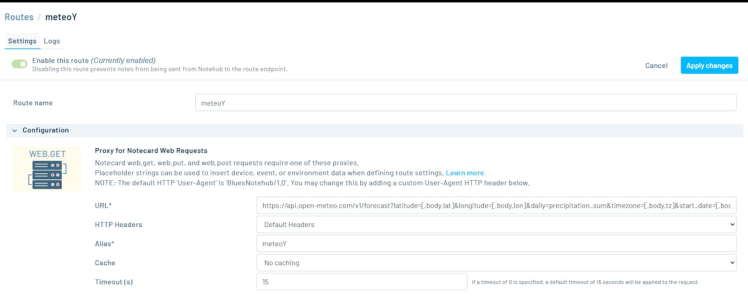
With that, we have everything we need setup for the code we already discussed to work in full.
Extra Credit - an Android App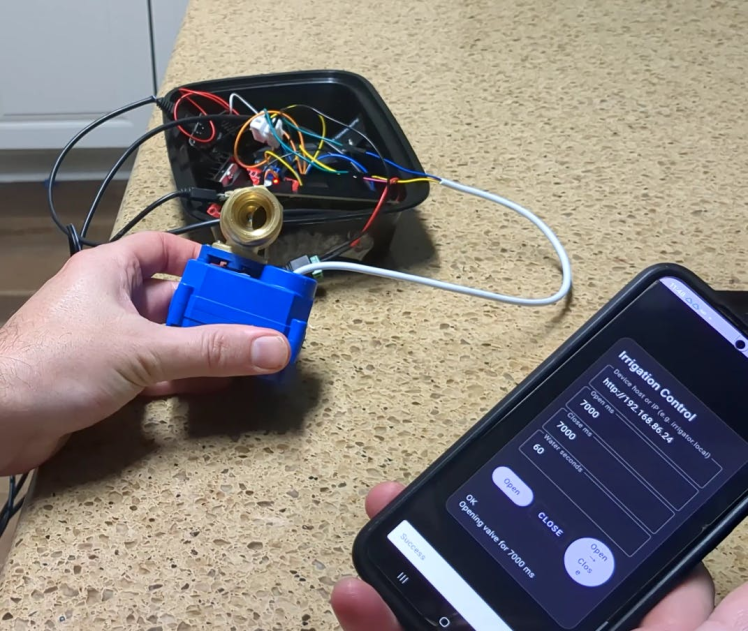
Every now and then we get an inkling that we should just do "one more thing real quick". The thinking was that making a call to the arduino via a url in something like a web browser is easy, so I'd just basically be making it look nicer.
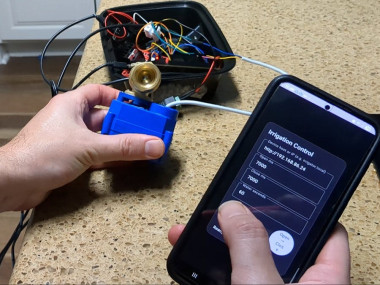
The app's purpose is to give the ability to control the valve directly, where we can open, close, or open then close (as in one button press opens, waits, then closes it) the valve.
It's not the world's fanciest app by any stretch, but it does work in full and it's included in the project. The easiest way to make this work consistently was to just use the ESP32's ip address, which you can lock in to keep it consistent with your wifi network. For example, I'm using a Google Wifi setup, and to keep the ip address consistent I was able to just do that in the Google Home app.
In retrospect, the issue with this idea is that, as discussed, the setup is a bit too far for the wifi to reach. Since this app is setup up to work over wifi it does work in theory but in practice this was a bit of a silly add-on, at least for my setup. If you're following along and your setup is within range of your wifi, you're welcome! Thankfully, I don't see much of a need to open and close the valve manually. If we feel the need to water more than the rain barrel is doing automatically, we'll just use the hose.
Done!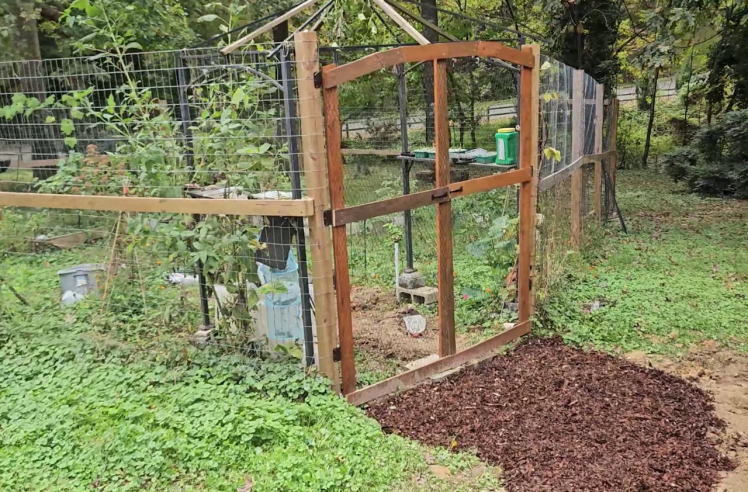
This project overall (including the garden build) took quite a bit of work to make happen so it's very satisfying to see it all done and working. The electronics work in full and are a set it and forget it type solution that should help keep the garden alive while our attention is focused on things like keeping our kids alive instead, so hopefully all the upfront effort pays off.
Hope you enjoyed and have a good one.
CAD, enclosures and custom parts
Code
Credits
Related products






Leave your feedback...