





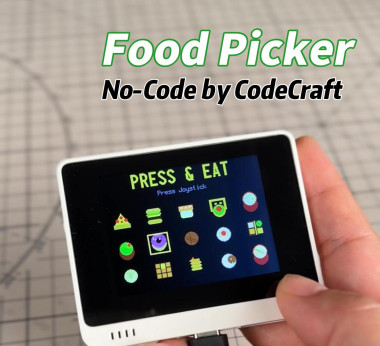
Press & Eat: From Idea To Hardware In 5 Minutes

Made by -175 / Artificial intelligence / Games & Gaming / Sensors
About the project
This visual guide shows how to build a STEM project for Wio Terminal in just 5 minutes with CodeCraft—from describing the idea and flashing online to testing and refining the result. A simple workflow for makers and STEM educators to try and bring their ideas to life
Project info
Items used in this project


Story
Press once to pick, press again for a new result. Great for pre-meal dilemmas, deciding group takeout with friends, or office lunch picks.
After burning the program to your Wio Terminal, the screen shows "PRESS & EAT" and "WHAT TO EAT?". Just press the 5-way joystick, and food names start scrolling rapidly — KFC, Burger, Pizza, Sushi, Ramen… 20 in total. After 2 seconds it stops, displaying "TODAY'S CHOICE" with the final result and a matching pixel icon. The bottom says "JUST EAT IT!" — no more indecision, just eat.
Struggling with "what to eat" every mealtime? This project is here to save the day.
1.Preparation
Hardware:
- Wio Terminal × 1
- USB data cable × 1 (for connecting and burning)
Tools:
- Chrome / Edge / 360 Browser (must support Web Serial API)
- CodeCraft platform (generate code online, no installation needed)
2.Build and Test with CodeCraft
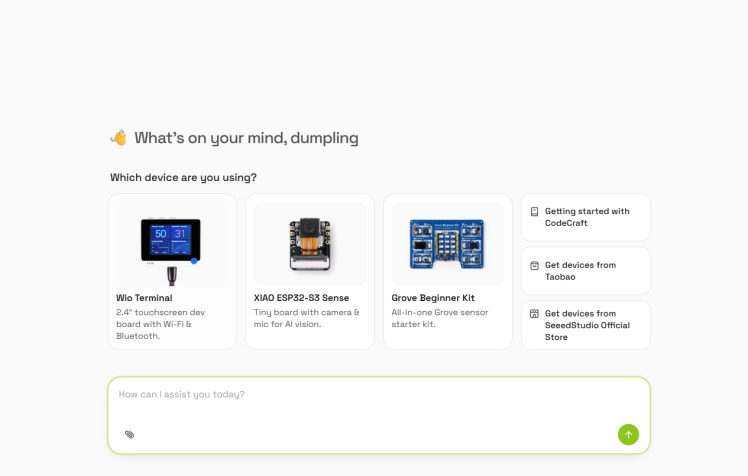
Step 1: Open CodeCraft
Go to codecraft.seeed.cc in your browser, log in, click "Create Project", and select Wio Terminal as the board.
Step 2: Enter the project prompt
Enter the following prompt in CodeCraft's dialog:
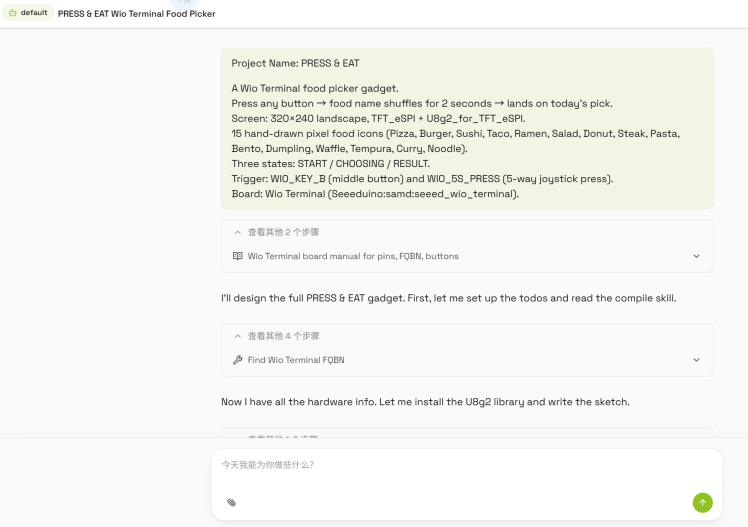
Step 3: Generate and burn
Wait for CodeCraft to generate the code. Connect Wio Terminal to your computer with the USB cable, select the correct serial port in CodeCraft, and click burn.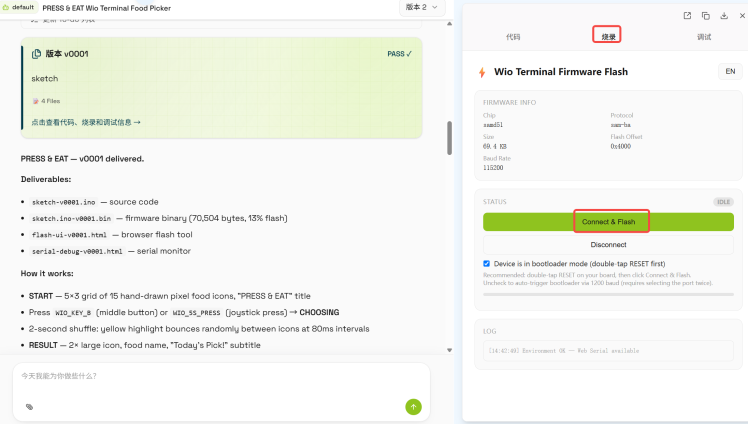
Step 4: Test
After burning, the Wio Terminal screen shows the idle screen. Press the 5-way joystick and watch the food names scroll rapidly, then stop after 2 seconds showing the final result. Press again to pick again.
Credits
Related products





Leave your feedback...