





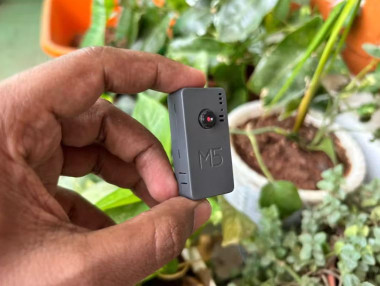
M5 Timercam X: Wi-fi Camera With Live Web Dashboard

About the project
Turn a thumb-sized M5Stack Timer Camera X into a self-hosted network camera: configure Wi-Fi from your phone, watch a live stream.
Project info
Difficulty: Easy
Platforms: Espressif
Estimated time: 2 hours
License: GNU General Public License, version 3 or later (GPL3+)
Story
Most ESP32-camera tutorials stop at the stock CameraWebServer example: Wi-Fi credentials typed into the sketch, a bare page with sliders, and nothing else. I wanted something I could hand to anyone: plug it in, connect to it from a phone, type the Wi-Fi password once, and get a polished dashboard that works on a PC or phone.

The M5Stack Timer Camera X is perfect for this. It packs an ESP32, 8 MB of PSRAM, a 3-megapixel OV3660 sensor, a battery and a real-time clock into a case the size of a matchbox. This sketch gives it:

- Zero-config Wi-Fi. On first boot the camera starts its own Wi-Fi network and a captive portal. Pick your network on your phone and you're done. It remembers the network.
- Live video stream with pause, fullscreen, rotation, snapshot download and in-browser video recording.
- Full camera control: resolution up to 2048x1536, JPEG quality, brightness, contrast, saturation, sharpness, colour effects, white balance, exposure and gain. Settings survive reboots.
- Hardware extras: dimmable LED, battery level, Wi-Fi signal, frame rate, memory and uptime.
- Time-lapse studio: plan by interval and duration and see frame count, video length, speed-up and storage before you start. Capture on the camera (runs with the browser closed and resumes after power loss) or in the browser (unlimited), then export a video or a ZIP of photos.
- Keyboard shortcuts and a dark design that also works on phones.
Get PCBs for Your Projects Manufactured

You must check out PCBWAY for ordering PCBs online for cheap!
You get 10 good-quality PCBs manufactured and shipped to your doorstep for cheap. You will also get a discount on shipping on your first order. Upload your Gerber files onto PCBWAY to get them manufactured with good quality and quick turnaround time. PCBWay now could provide a complete product solution, from design to enclosure production. Check out their online Gerber viewer function. With reward points, you can get free stuff from their gift shop. Also, check out this useful blog on PCBWay Plugin for KiCad from here. Using this plugin, you can directly order PCBs in just one click after completing your design in KiCad.
Hardware components
- M5Stack Timer Camera X (x1): the OV3660 version with 8 MB PSRAM (SKU U082-X). It has an ESP32, 4 MB of flash and a built-in 270 mAh battery.

- USB-C data cable (x1): it must carry data, not just power.
- A computer (x1): Windows, macOS or Linux, for uploading the sketch and viewing the dashboard.
- A 2.4 GHz Wi-Fi network: the ESP32 can't join 5 GHz networks.
Software and libraries
- Arduino IDE 2.x: for editing, compiling and uploading the sketch.
- esp32 by Espressif Systems, version 3.x (Boards Manager): adds ESP32 support, including the camera driver, file system and settings storage. Tested with 3.3.10; 2.0.x also works.
- WiFiManager by tzapu, 2.0.17 or newer (Library Manager): creates the captive portal for Wi-Fi setup.
- Chrome or Edge: for the dashboard, recording and time-lapse video export.
How it works

- Two web servers. Port 80 serves the dashboard, settings and snapshots. Port 81 serves only the live video stream, which never ends, so the dashboard stays responsive while people watch.
- Captive portal. The WiFiManager library creates the M5TimerCam-Setup network and the setup page, then saves your Wi-Fi details in the camera's flash memory.
- Settings memory. Every change made on the dashboard is stored on the camera and re-applied at boot.
- Time-lapse storage. Frames are saved as JPEG files in about 1.9 MB of the camera's flash. If the camera loses power mid-shoot, it carries on from the last frame when it restarts.
- Browser does the heavy lifting. Building the time-lapse video and the ZIP file happens on your computer, not on the camera.
- Self-contained. The whole dashboard is stored inside the sketch, so it works even on a network with no internet access.
Hardware overview
There's no wiring in this project.


A single USB-C cable provides power, uploading and the serial monitor. For reference, these are the on-board connections the sketch uses:

- Camera clock and sync: GPIO 27 (XCLK), 21 (PCLK), 22 (VSYNC) and 26 (HREF).
- Camera configuration bus: GPIO 25 (SDA) and 23 (SCL), similar to I2C.
- Camera data D0-D7: GPIO 32, 35, 34, 5, 39, 18, 36 and 19 (an 8-bit parallel bus).
- Camera reset: GPIO 15.
- Status LED: GPIO 2, dimmable from the dashboard.
- Battery sense: GPIO 38, read through an on-board voltage divider.

- Power hold: GPIO 33, held HIGH so the camera stays on when running from its battery.

Step 1: Install the Arduino IDE and ESP32 support
1. Download and install Arduino IDE 2 from arduino.cc/en/software.

2. Open File > Preferences and paste this into Additional boards manager URLs: https://espressif.github.io/arduino-esp32/package_esp32_index.json

3. Open Tools > Board > Boards Manager, search for esp32, and install esp32 by Espressif Systems (version 3.x).

Step 2: Install the WiFiManager library
Open Tools > Manage Libraries, search for WiFiManager and install WiFiManager by tzapu (2.0.17 or newer). Everything else the sketch needs (camera driver, LittleFS file system, Preferences) comes with the ESP32 board package.

Tip: If you've installed a separate esp32-camera or esp_camera library in the past, remove it from Documents/Arduino/libraries. The ESP32 board package already includes the camera driver, and an old copy can cause compile errors.
Step 3: Get the sketch
Download the project and open M5TimerCamX/M5TimerCamX.ino in the Arduino IDE. The folder must keep the same name as the .ino file, and all seven files must sit together in that folder. The IDE opens them as tabs.
- M5TimerCamX.ino: start-up, Wi-Fi setup with the captive portal, reconnecting and reboot handling.
- camera_server.cpp and camera_server.h: the camera, LED, battery, saved settings and all web addresses.
- timelapse.cpp and timelapse.h: the on-camera time-lapse recorder.
- index_html.h: the complete web dashboard (HTML, CSS and JavaScript).
- camera_pins.h: the Timer Camera X pin map.

Step 4: Choose the board settings
Plug in the camera, then set these options in the Tools menu:
- Board: esp32 > M5TimerCAM
- PSRAM: Enabled
- Partition Scheme: No OTA (2MB APP/2MB SPIFFS)
- Port: the camera's port, for example COM7 on Windows or /dev/cu.usbserial-xxxx on macOS.
- Upload Speed: 921600 (lower it to 115200 if uploads fail).
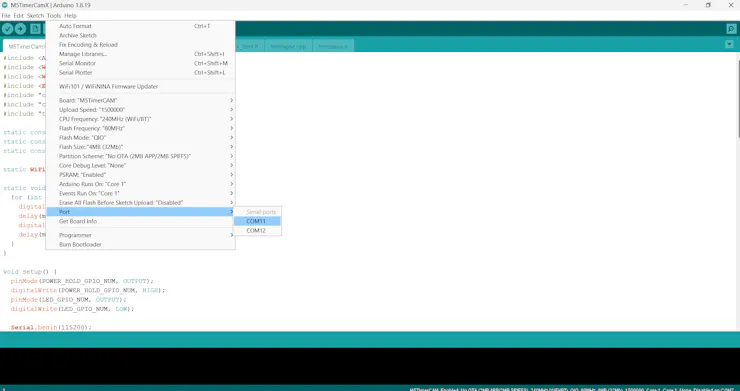
Important: PSRAM must be Enabled. Without it the camera can't hold high-resolution frames and will fail to start. The partition scheme matters too. The sketch is about 1.3 MB, too big for the default 1.2 MB app space, and this scheme also provides the ~1.9 MB used to store time-lapse frames.
Step 5: Upload
Click Upload (the right-arrow button). The first compile takes a few minutes. When it finishes you should see something like:
Sketch uses 1295785 bytes (61%) of program storage space. Maximum is 2097152 bytes.
Global variables use 62328 bytes (19%) of dynamic memory, leaving 265352 bytes for local variables.
...
Hash of data verified.
Hard resetting via RTS pin...
Tip: If the upload says the port is busy or access is denied, another program has the port open. Close any other serial monitor (PuTTY, another IDE window) and quit the Arduino Cloud Agent from the system tray, then try again.
Step 6: Open the Serial Monitor
Open Tools > Serial Monitor and set the speed to 115200 baud. Press the camera's reset button if nothing appears. On the very first boot you'll see the setup network start:
=== M5 TimerCam X ===
Camera OK, PSRAM: yes
LittleFS: 16 / 1920 KB used, 0 time-lapse frames stored
*wm:No wifi saved, skipping
*wm:StartAP with SSID:  M5TimerCam-Setup
*wm:AP IP address: 192.168.4.1
Captive portal running. Join WiFi "M5TimerCam-Setup" and open http://192.168.4.1
Step 7: Connect the camera to your Wi-Fi

1. On your phone or laptop, join the Wi-Fi network M5TimerCam-Setup. The camera's LED stays on while this setup network is active.

2. A setup page opens automatically. If it doesn't, open a browser and go to http://192.168.4.1.

3. Tap Configure WiFi, choose your home network (2.4 GHz), enter the password and tap Save.

4. The camera joins your network, blinks its LED three times and prints its address in the Serial Monitor.
The Serial Monitor now shows:
*wm:AutoConnect: SUCCESS
Connected to MyHomeWiFi, IP: 192.168.1.10, RSSI: -50 dBm
mDNS: http://timercam.local
Open http://192.168.1.10 in your browser
Good to know: The camera remembers your network, so from now on it connects by itself at power-on. If it can't find the network, or you don't finish setup within 5 minutes, it restarts the setup network. Re-uploading the sketch doesn't erase the saved Wi-Fi details.
Step 8: Open the dashboard
On any computer or phone on the same network, open http://timercam.local or the IP address from the Serial Monitor. That's it. The rest of this guide is a tour of what the dashboard can do.

Dashboard walkthrough
Here's a tour of every part of the web interface, using real screenshots of the camera running on my desk.
1. Header: live status at a glance
- Live indicator: green when video is arriving, red with automatic reconnect if the stream drops, grey when paused.
- Wi-Fi bars: four bars based on signal strength, with the exact dBm value.
- Battery: the fill colour changes from green to amber below 40% and red below 15%.
2. Live view and toolbar
The video panel shows the date, time and current resolution on top of the picture. Double-click the video to go fullscreen.
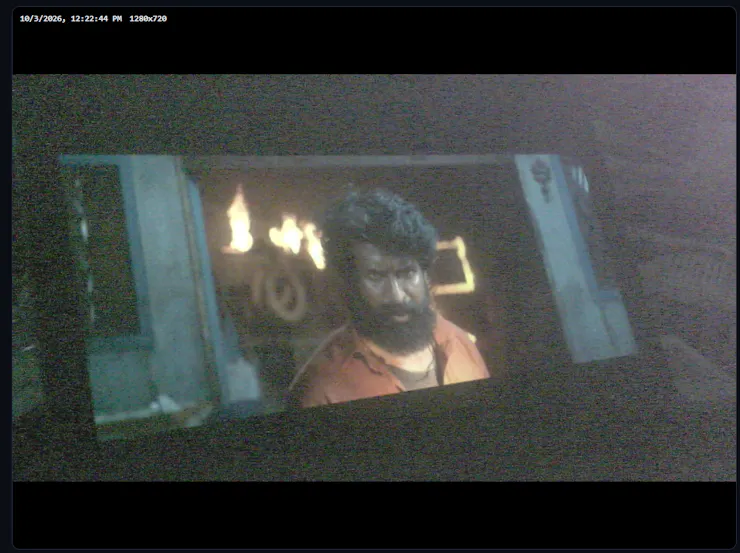
The buttons below the video, with their keyboard shortcuts:
· Pause / Play (Space): stops the stream completely, saving Wi-Fi bandwidth and battery.
· Snapshot (S): takes a full-quality photo and downloads it as timercam_YYYYMMDD_HHMMSS.jpg, with a white flash effect.
· Record (R): records the live view to a WebM video in your browser. A blinking REC badge and timer appear on the video.
· Fullscreen (F): shows the stream fullscreen.
· Rotate: rotates the view 90 degrees at a time. Your browser remembers it, which is handy when the camera is mounted sideways.
· LED (L): switches the camera's LED on or off. The button turns red when the LED is on.
3. System stats
Six cards refresh every 3 seconds:

- Battery: percentage and measured voltage.
- WiFi: signal strength and network name.
- Stream: actual frames per second and how many people are watching.
- Uptime: time since the camera started, and the camera sensor model (OV3660).
- Memory: free working memory on the camera.
- Network: IP address and MAC address.
4. LED, stream and image controls

- LED: click the bulb to switch it on or off, or drag the slider for 1-100% brightness.
- Resolution: 10 sizes from 320x240 up to 2048x1536. Smaller sizes give smoother video.
- JPEG quality: 6 (best, largest files) to 40 (smallest). 10-14 is a good balance for streaming.
- Brightness / Contrast / Saturation / Sharpness: fine-tune the picture.
- Effect: None, Negative, Grayscale, Red / Green / Blue tint or Sepia.
- Flip vertical / Mirror / Lens correction: fix orientation for any mounting and even out darker corners.
Changes apply instantly and are saved on the camera, so they're still there after a restart.
5. Time-lapse planner

Choose where to save frames, how often to capture (seconds, minutes or hours), how long to run (minutes, hours or days, or Run until I stop it) and the playback speed of the final video. Four presets fill in typical values: Clouds (every 5 s for 1 h), Sunset (every 10 s for 2 h), Work day (every 1 min for 8 h) and Plant (every 5 min for 3 days). The planner works out:
- Frames: how many photos will be taken.
- Video length: how long the finished video will be.
- Speed-up: how many times faster than real life the video plays.
- Estimated size: the total storage the photos will need.
- Finishes at: the clock time the time-lapse will end.
- Camera capacity: how many photos fit on the camera at the current resolution.
If your plan won't fit on the camera, an amber warning tells you how long it can actually run and suggests lowering the resolution, capturing less often, or saving to the browser instead.
7. Recording in progress
While recording, the status turns green and the progress bar fills up. You can see the number of frames captured, time elapsed and remaining, a countdown to the next frame and the storage used. The settings are locked until the time-lapse finishes or you stop it.
8. Preview and export

- Scrub slider: step through every frame.
- Play preview: plays the frames at the selected speed right in the page.
- Build video (.webm): turns all frames into a video and downloads it. Keep the tab visible while it builds.
- Download frames (.zip): downloads every photo in one ZIP file, ready for any video editor.
- Delete frames: clears the time-lapse, on the camera or in the browser.
Conclusion

With an M5Stack Timer Camera X and a single Arduino sketch, you get a complete Wi-Fi camera. You set up Wi-Fi from your phone through a captive portal, then watch a live stream and control everything from a clean web dashboard. You can tune the picture, dim the LED, check the battery and shoot time-lapses, all without a cloud service or app. Because everything runs on the camera, it's private, works on any local network, and is easy to build on. Next, you could add password protection, motion alerts, or long battery-powered time-lapses using deep sleep. I hope this inspires you to build your own. Share what you make in the comments!
Credits
Related products


Leave your feedback...