


Give Your Iphone Robot Hands: A $7 Xiao Esp32-s3 Agent

Made by handsyai / Artificial intelligence
About the project
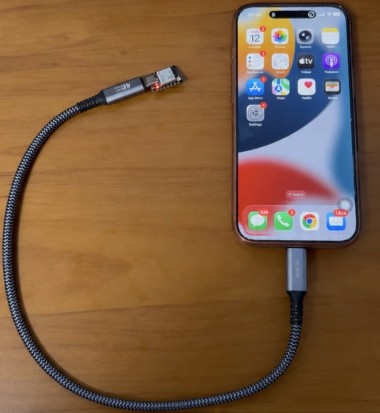
Plug a thumb-sized XIAO ESP32-S3 into your iPhone and an AI agent can see the screen and tap, swipe and type like you do.
Project info
Items used in this project

Story
Plug a thumb-sized XIAO ESP32-S3 into your iPhone and an AI agent can see the screen and tap, swipe and type like you do. No jailbreak, no soldering, no app-store tricks: the board mirrors the screen and acts as a USB mouse and keyboard.
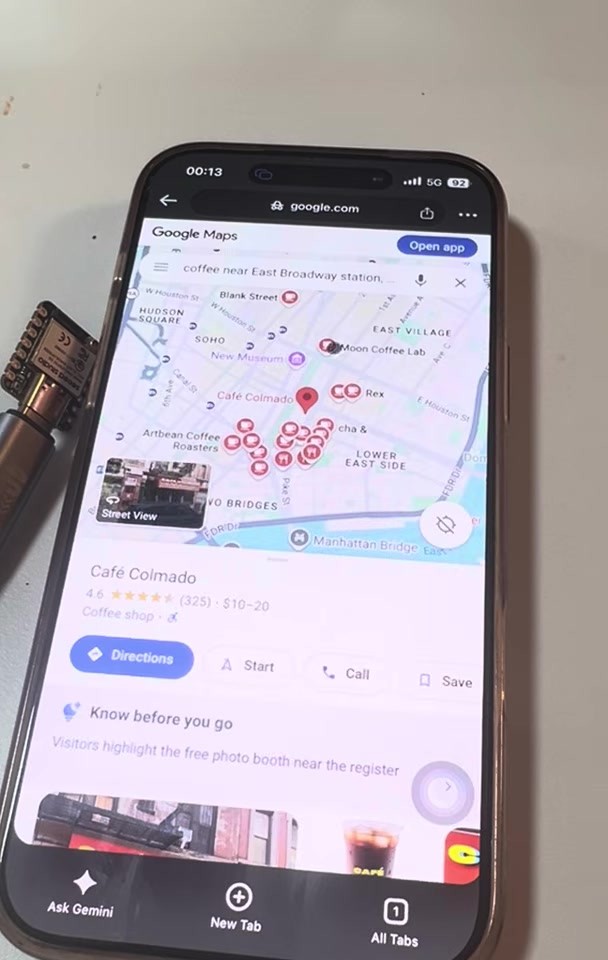
Demo video (68 seconds, the agent finds a coffee shop in Google Maps):
How it works: the board opens its own Wi-Fi hotspot and shows up in Screen Mirroring as "ESP32 Agent", forwards the H.264 stream to the app over Wi-Fi (TCP 7201), takes commands over BLE, and moves an AssistiveTouch pointer as a USB HID mouse and keyboard.
Supplies
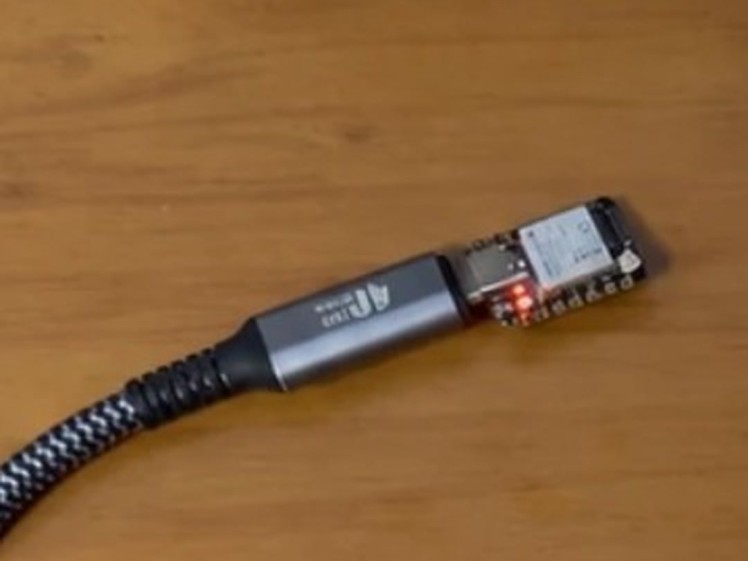
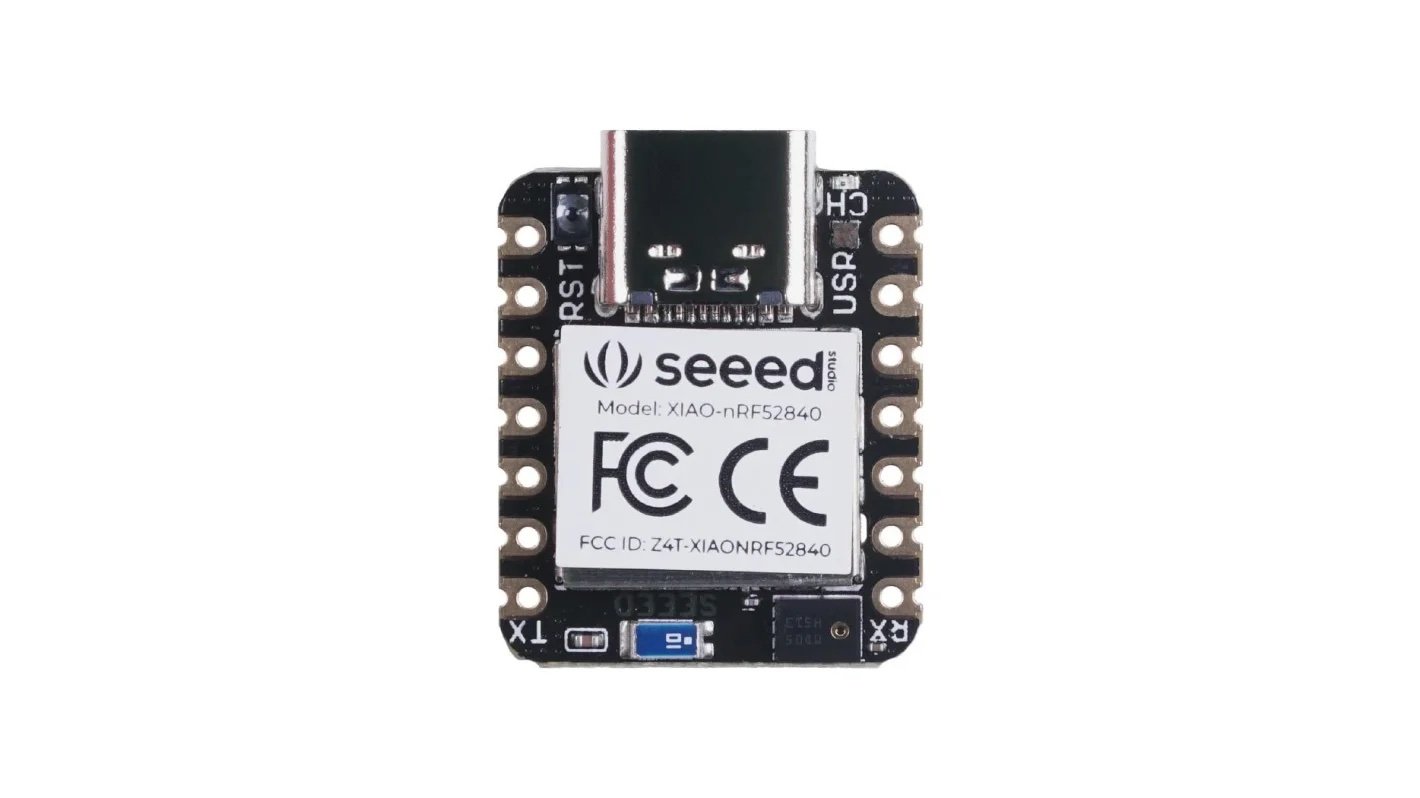
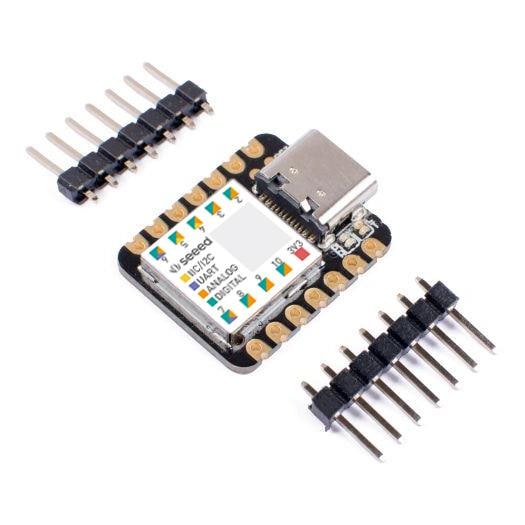
- Seeed Studio XIAO ESP32S3 (plain version, 8 MB PSRAM; not Sense/Plus), about $7
- Short USB-C to USB-C data cable (Lightning iPhones: Lightning to USB Camera Adapter)
- iPhone on iOS 18+ with cellular data
- A computer with Chrome or Edge (only for the one-time flash)
Get a XIAO ESP32S3
Order the plain XIAO ESP32S3 (Seeed store, Amazon, or a local distributor). Any ESP32-S3 with native USB-C, 8 MB flash and 8 MB PSRAM should also work; ESP32-C3/C6/S2 and CH340/CP2102 boards won't.
Flash It in Your Browser
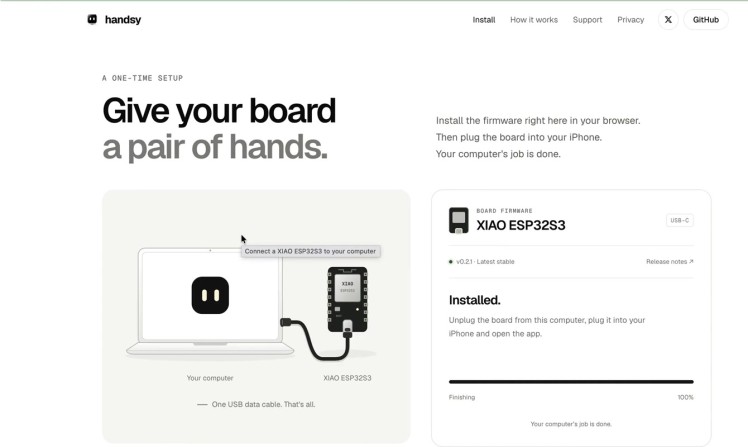
Plug the board into your computer, open https://handsy.tech/install in Chrome or Edge, click "Connect board", pick the port, and wait about 30 seconds. No IDE, no drivers. If it says "Failed to connect", hold BOOT while plugging it in.
Tip: install the TestFlight app (Step 5) before flashing; the installer then uses the matching firmware (v0.2.2).
Turn on AssistiveTouch
On the iPhone: Settings > Accessibility > Touch > AssistiveTouch > On. Now a USB mouse moves an on-screen pointer, so a click is a tap and a drag is a swipe. Plug the board into the iPhone; the phone powers it.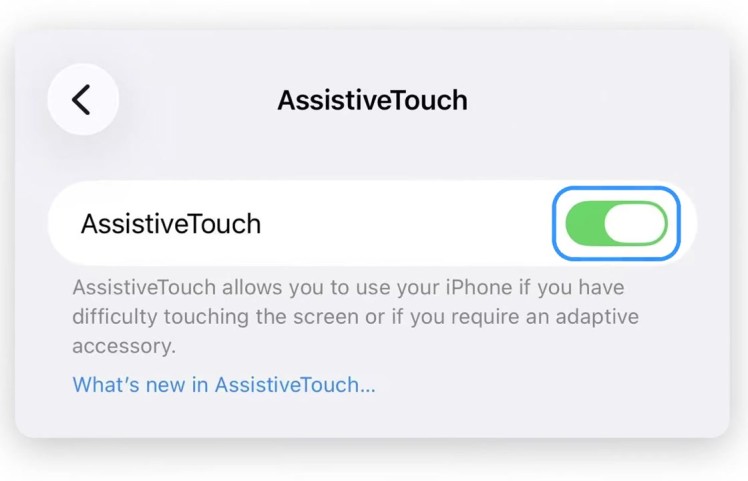
Join the Hotspot and Start Screen Mirroring
Join the board's Wi-Fi hotspot, then open Control Center > Screen Mirroring > ESP32 Agent. The phone keeps using cellular data for the internet while it is on the hotspot.
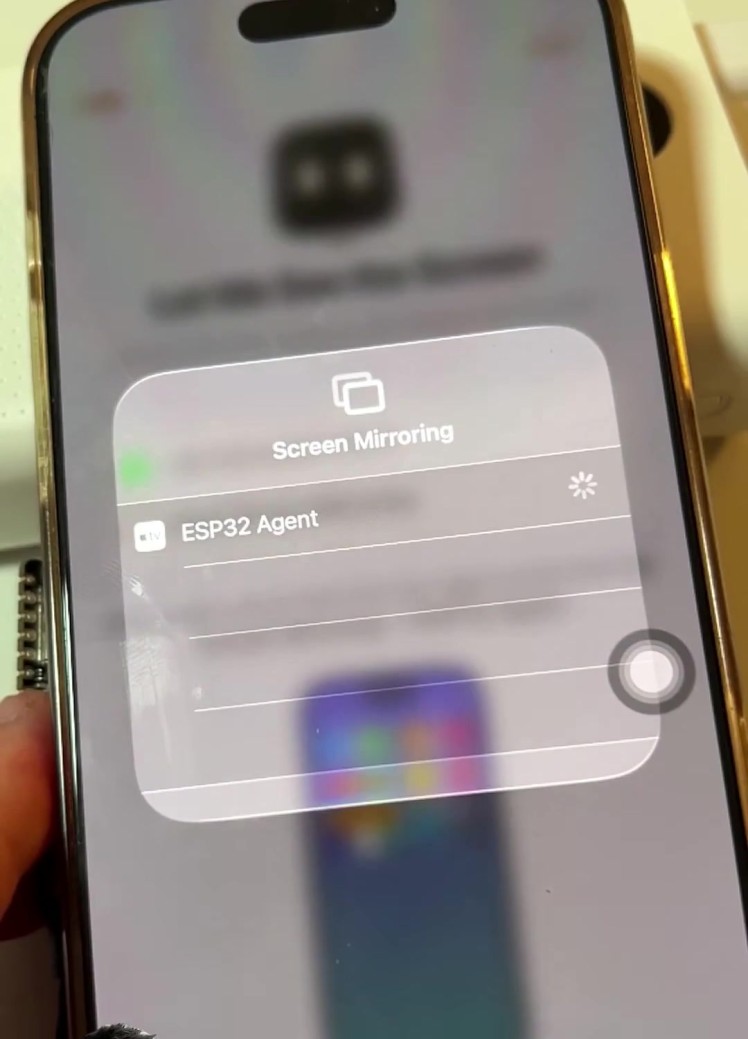
Give It a Task (iPhone App or Computer CLI)
On the phone: install the public beta from TestFlight (https://testflight.apple.com/join/1xQHgJcA). The app walks you through setup and checks each step. Type a goal, e.g. "Find a coffee shop nearby in Google Maps", and press Start.
From a computer: run "npm install -g esp32agent", then "esp32agent pair" and "esp32agent screenshot". It is also an MCP server, so a coding agent can drive the phone:
claude mcp add esp32agent -- npx -y esp32agent mcp
Open source (MIT), 4,000+ stars, covered by Hackaday: https://github.com/onehumanbeing/esp32-iphone-agent | https://hackaday.com/2026/10/14/ai-controls-iphone-via-esp32/ | https://handsy.techMade by Henry Yuan, Holomix, Inc. Only automate devices and accounts you own.
Code
Credits
Related products





Leave your feedback...